
Chiseiko Essential Swatches Pro
Dynamic Price Sync
Pro module. Requires Chiseiko Essential Swatches Pro with an active license. Enable the "Dynamic Price Sync" module at WooCommerce → Chiseiko Essential Swatches Pro → Modules.
What Does This Module Do?
When a customer is on a product page and picks an option, the price they see should always match the option they just chose. Dynamic Price Sync makes that happen automatically.
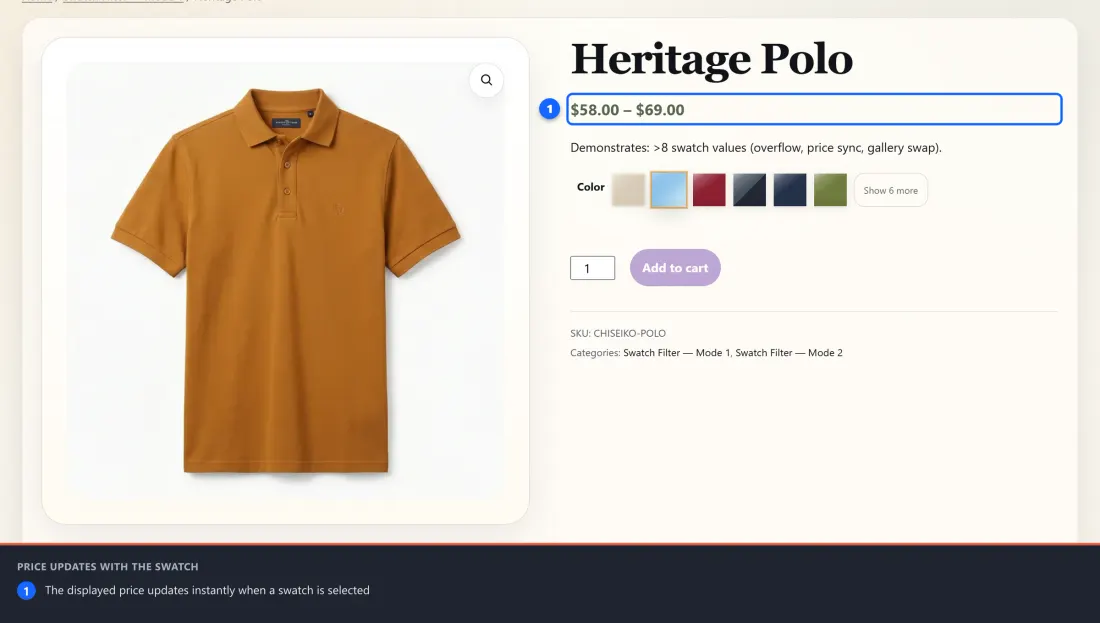
Without it, WooCommerce often shows a price range at the top of a variable product (for example "$9.00 – $12.00") and the exact price only appears in a small line near the Add to Cart button after a selection is made. That split can confuse shoppers — the headline price never seems to match what they picked.
With this module enabled, the moment a shopper clicks a swatch the displayed price updates instantly to reflect the selected option:
- Variable products — as soon as the customer finishes selecting a variation (for example Color: Red, Size: Large), the price shown updates to that exact variation's price. If they've only made a partial selection (just the color, say), the displayed price narrows to the range of the matching options — so "$9.00 – $12.00" might become "$10.00 – $12.00".
- Linked simple products — when you've grouped separate simple products together with the Linked Simple Products module, hovering or focusing a linked swatch previews that product's price, and clicking it commits the price to match the chosen product.
It works with sale prices, price ranges, and your store's currency formatting, because it reuses the exact price WooCommerce itself produces — it never invents its own numbers.
Why it's useful: the price the customer sees always matches the swatch they picked. No confusion, no surprises at checkout, and a more polished, trustworthy shopping experience.
Enabling the Module
This module has no settings page of its own — it works automatically the moment you switch it on. You just enable it once:
- Go to WooCommerce → Chiseiko Essential Swatches Pro → Modules.
- Find the card labeled Dynamic Price Sync and check its toggle.
- Click Save Modules.
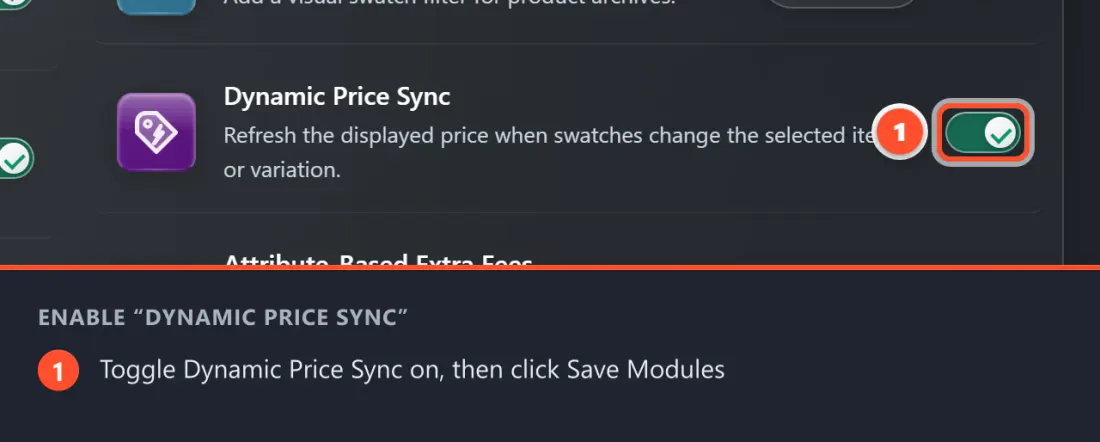
That's it. There are no extra options to configure, no values to tune, and nothing to set per product. From now on, every product page in your store will keep its displayed price in sync with the customer's swatch selection.
Store-wide. This single toggle covers both variable products and linked simple products. You don't enable it separately for each — turning it on once applies everywhere swatches appear.
What the Customer Experience Looks Like
Here's what a shopper sees once the module is active.
On a variable product (e.g. a T-shirt in several colors and sizes):
- The customer lands on the product page and sees a price range at the top, like "$19.00 – $25.00".
- They click a color swatch. The displayed price immediately narrows to the range that still applies for that color — for example "$19.00 – $22.00".
- They then click a size swatch, completing the selection. The price instantly updates to the exact price of that one variation — for example "$22.00".
- If they change their mind and pick a different color or size, the price updates again right away.
- If they clear their selection, the original price range reappears.
On linked simple products (separate products grouped as swatches):
- The customer sees the swatch strip for the linked group on the product page.
- As they hover (or keyboard-focus) over another swatch in the group, the price previews what that product costs — without committing to it yet.
- When they move away, the price returns to the currently selected product.
- When they click a linked swatch, that product becomes the selection and its price stays shown.
In every case the change is immediate and smooth — there's no page reload and no loading spinner for the price itself.
Tips for Best Results
- Make sure every variation and every linked product has a price set. The module displays whatever price WooCommerce has for the selected option. If a variation is missing a price, there's nothing to show.
- It works with sale prices. If a variation is on sale, the synced price shows the sale price (with the original struck through) exactly as WooCommerce formats it elsewhere.
- It respects your currency settings. The currency symbol, decimal places, and thousands separator all follow your WooCommerce store settings automatically.
- Pairs well with Linked Simple Products. If you use linked groups, this module is what keeps the headline price matching the product the shopper selects.
- Pairs well with the Sticky Add-to-Cart Bar. When both are on, the price in the sticky bar and the price on the page stay consistent with the chosen option.
- No configuration needed. If the price isn't updating, the most common cause is simply that the module is toggled off — re-check WooCommerce → Chiseiko Essential Swatches Pro → Modules.
Frequently Asked Questions
Q: Do I have to set this up on each product? A: No. There is nothing to configure per product and no settings page. You enable the module once at WooCommerce → Chiseiko Essential Swatches Pro → Modules and it applies store-wide to every product page automatically.
Q: Does it work for both variable products and linked simple products? A: Yes. The single Dynamic Price Sync toggle covers both. For variable products it updates the price when a variation is selected; for linked simple products it previews and commits the price as the shopper hovers and clicks the linked swatches.
Q: Will the price it shows ever be wrong or different from checkout? A: No. The module displays the exact price WooCommerce itself calculates for the selected option — including sale prices — so the displayed price always matches what the customer pays.
Q: Why does the price sometimes show a range instead of one number? A: On a variable product, a range appears when the customer hasn't finished selecting every option yet. As they make more selections, the range narrows, and once a single variation is chosen the price becomes one exact number.
Q: My theme shows the price in two places — does it update both? A: Yes. Many themes display the product price twice (once near the title and once near the Add to Cart button). The module keeps both locations in sync, on classic themes and block themes alike.