
Chiseiko Essential Swatches Pro
Gallery Zoom Alignment
Pro module. Requires Chiseiko Essential Swatches Pro with an active license. Enable the "Gallery Zoom Alignment" module at WooCommerce → Chiseiko Essential Swatches Pro → Modules.
What Does This Module Do?
On a WooCommerce product page, the main product photo often has a zoom on hover effect: when a shopper moves their cursor over the image, a sharper, magnified copy of the photo appears on top of it so they can inspect the detail.
The trouble is that many themes add a little breathing room around the gallery — some padding, a margin, or a border to make the image sit nicely inside the page layout. WooCommerce's built-in zoom doesn't account for that spacing. The result is that the magnified copy appears shifted, or offset, from the real photo underneath it. Instead of lining up perfectly, you see something like two copies of the same image at slightly different positions — the zoomed image looks nudged a few pixels up, down, or to the side, and it can appear to jump or "oscillate" the moment you hover.
It looks like a glitch, and it makes the product photo feel broken even though nothing is actually wrong with your images.
Gallery Zoom Alignment fixes this automatically. Behind the scenes it measures exactly how much spacing your theme has added around the gallery photo, then shifts the zoom layer by that same amount so the magnified copy sits directly on top of the real photo. The two line up perfectly, the offset disappears, and the zoom behaves the way shoppers expect.
Because it works by measuring the theme's spacing rather than assuming a fixed value, it adapts to whatever theme you're running — there's nothing for you to measure, calculate, or type in.
Do I Need This Module?
You need this module if your product photos use the classic WooCommerce zoom-on-hover effect and the zoom looks misaligned.
To check:
- Open one of your product pages as a shopper would.
- Move your cursor slowly over the main product photo.
- Watch the magnified image that appears.
If the zoomed image lines up perfectly with the photo underneath, you don't need this module. If the zoomed image looks shifted, offset, or like a doubled image that jumps when you start hovering, this module is exactly what you need.
If your product photos don't zoom at all, or your theme uses a lightbox/pop-up instead of hover-zoom, the offset bug doesn't apply and the module simply stays out of the way.
Enabling the Module
- Go to WooCommerce → Chiseiko Essential Swatches Pro → Modules.
- Check the box next to Gallery Zoom Alignment.
- Click Save Modules.
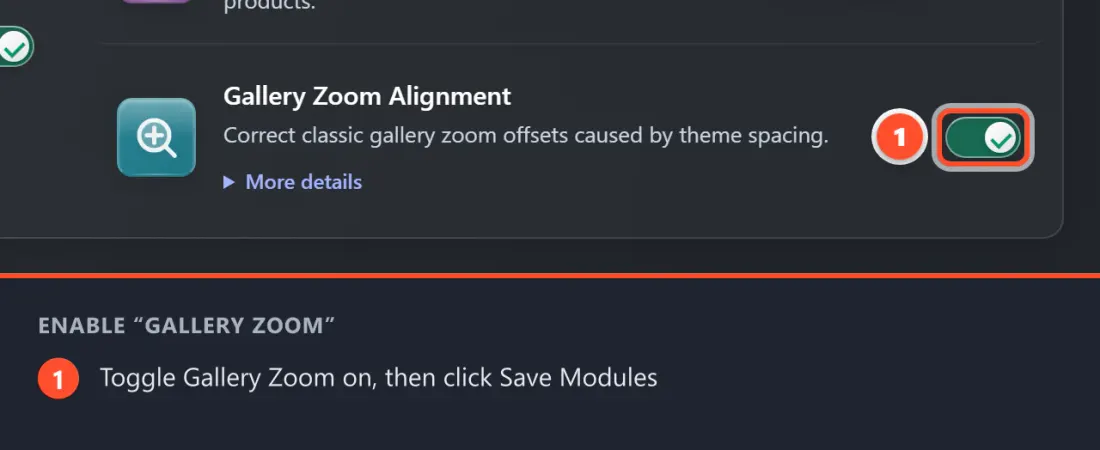
That's all there is to it. This module has no settings of its own — there is no separate settings tab and nothing to configure. Once the toggle is on, it works automatically on every product page across your whole store, measuring and correcting the zoom alignment on each photo as shoppers hover.
Classic Gallery vs Block Gallery
WooCommerce has two different product galleries, and this module only matters for one of them:
- Classic product gallery (the long-standing, jQuery-based gallery used by most classic themes). This is the one with the hover-zoom that can drift out of alignment. Gallery Zoom Alignment fixes this gallery.
- Block product gallery (the newer gallery used by block themes). It produces its zoom a completely different way and does not have this offset problem at all. On pages using the block gallery, this module recognizes that there's nothing to fix and stays completely dormant — it does no work and changes nothing.
So whether your store uses a classic theme or a block theme, enabling the module is safe. It only steps in where the classic-gallery zoom-offset bug can actually occur.
What Customers See (before vs after)
Before (module off, with an affected theme):
- Shopper hovers over the product photo.
- A magnified copy appears, but it's shifted to one side — the zoom looks like it's peeking out from behind the real image.
- The mismatch can flicker or "jump" the instant the cursor enters the photo, which looks like a bug.
After (module on):
- Shopper hovers over the product photo.
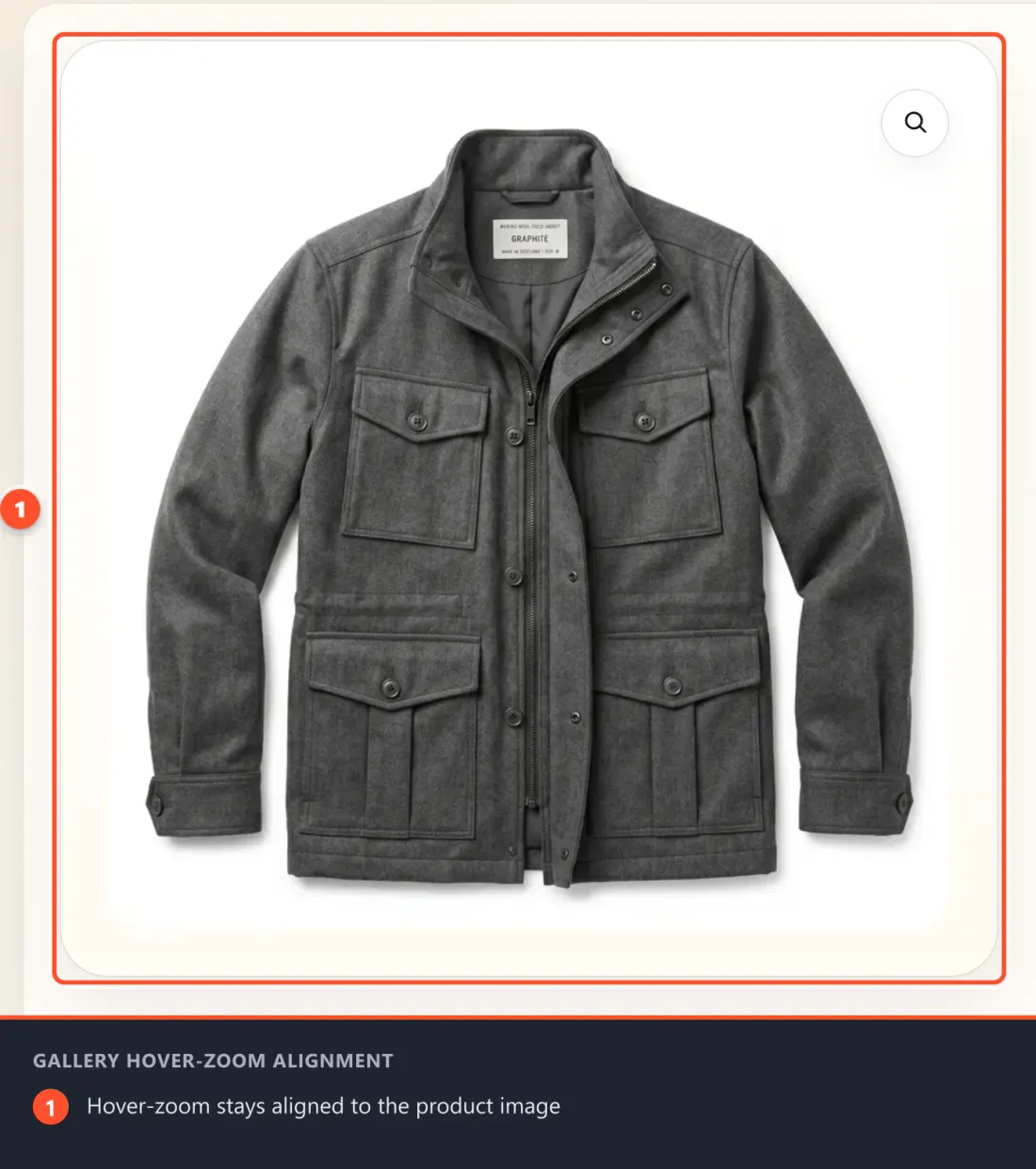
- The magnified copy appears exactly on top of the real image.
- The zoom is smooth and seamless — shoppers just see a clean, sharp close-up of the product, with no shift and no jump.
Tips for Best Results
- Just turn it on and leave it. There's nothing to tune. The module measures your theme's spacing live on each page, so it keeps working even if you change themes or adjust your gallery's padding later.
- Check a real product page after enabling. The quickest confirmation is to hover over a product photo yourself and watch the zoom snap into alignment.
- It's safe to leave on for any theme. On block-theme galleries (which don't have the bug) the module stays dormant, so there's no downside to keeping it enabled store-wide.
- If you don't use hover-zoom at all, the module has nothing to do and simply sits idle — enabling it won't change anything.
Frequently Asked Questions
Q: Is there a settings page for this module? A: No. Other than the on/off toggle under WooCommerce → Chiseiko Essential Swatches Pro → Modules, this module has no options at all. It works fully automatically once enabled.
Q: Does it work with my theme? A: Yes — that's the point. Instead of being built for one specific theme, it measures whatever spacing your theme adds around the gallery and corrects the zoom by that exact amount. It adapts to your theme on its own.
Q: Will it affect the newer block gallery? A: No. The block gallery doesn't have the offset problem, so the module recognizes it and stays completely inactive there. It only acts on the classic WooCommerce gallery.
Q: I enabled it but the zoom still looks off. What now? A: First confirm your product page actually uses the classic WooCommerce hover-zoom (not a lightbox or the block gallery). If it does and the offset remains, see Chapter 24 — Troubleshooting & FAQ, as a third-party plugin or a heavy theme customization may be overriding the gallery.
Q: Does this change my images or how zoom works? A: No. Your photos, your gallery, and the hover-zoom behavior all stay exactly the same. The only thing it changes is where the magnified copy is positioned, so it lines up with the real photo.
Q: Will it slow down my product pages? A: It only loads on single-product pages, and only when the classic gallery with zoom is actually present. On any other page it loads nothing.
Q: Is the fix applied store-wide or per product? A: Store-wide. Once the module is enabled, the alignment correction applies automatically to every product page — there's nothing to set up product by product.