
Chiseiko Essential Swatches Pro
Multilingual Sync
Pro module. Requires Chiseiko Essential Swatches Pro with an active license. Enable the "Multilingual Sync" module at WooCommerce → Chiseiko Essential Swatches Pro → Modules. Requires a supported translation plugin (WPML or Polylang).
What Does This Module Do?
If you run a store in more than one language, you almost certainly use a translation plugin — WPML or Polylang — to offer your shop in, say, English, Spanish, and French. These plugins create a separate copy of each attribute term for every language. So your "Red" color becomes "Red" (English), "Rojo" (Spanish), and "Rouge" (French) — three different terms behind the scenes, even though they're the same real-world color.
Here's the problem this creates: a swatch (the color box, the image, the label text, the swatch type) is saved on the term. So normally you'd have to open "Red," "Rojo," and "Rouge" and set the exact same red color on each one. Three times. For every color. In every language. Miss one, and shoppers browsing that language see a blank or mismatched swatch.
Multilingual Sync removes that chore. You set the swatch once, on your default (source) language, and the translated versions automatically show the same swatch. Your "Rojo" and "Rouge" terms display the identical red box you configured on "Red" — no extra setup.
In short:
- Without this module: set every swatch separately in every language, and keep them all matching by hand.
- With this module: set a swatch once in your main language; the translations stay in sync automatically.
The result is that your swatches look identical across every language version of your storefront, with no duplicated work.
Before You Begin
This module only does something when a supported translation plugin is active. Make sure you have:
- Chiseiko Essential Swatches Pro installed and activated, with a valid license.
- WPML or Polylang installed, activated, and configured with your languages.
- Your product attributes and their terms translated in WPML/Polylang. The module links a translated term back to its source-language term using the translation relationships your plugin already maintains — so those terms need to be connected as translations of one another inside WPML or Polylang first.
- Your swatches set up on the default (source) language terms, the same way you set up any swatch (see Chapter 2).
If neither WPML nor Polylang is active, the module simply does nothing and adds no overhead — it's safe to leave enabled.
Enabling the Module
- Go to WooCommerce → Chiseiko Essential Swatches Pro → Modules.
- Check the box next to Multilingual Sync.
- Click Save Modules.
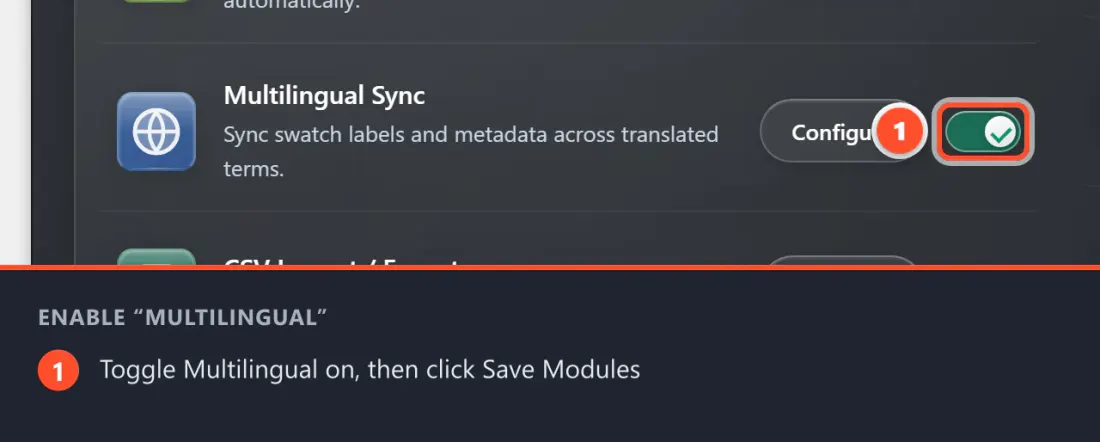
Once a supported translation plugin is detected, the core syncing behavior (described next) starts working automatically. There is no "Sync now" button to press and nothing to run manually — translated terms inherit their swatches the moment the module is active.
How Syncing Works (WPML and Polylang)
The module works the same way for both plugins; it just uses each one's own translation links under the hood. It detects which plugin you have automatically (it checks for WPML first, then Polylang) — you don't choose this anywhere.
There are two behaviors:
1. Automatic read fallback (always on)
This is the main feature and it needs no configuration. Whenever your storefront tries to display a swatch for a translated term that doesn't have its own swatch data, the module quietly fetches the swatch from the source-language term instead.
So when a shopper views your Spanish or French shop:
- "Rojo" / "Rouge" have no swatch of their own → the module reads the swatch from "Red" (the source term) → the shopper sees your red swatch.
You set it once on the default language, and every translation shows it. If a particular translated term does have its own swatch saved, that one is respected and used as-is — the fallback only kicks in when the translation has nothing of its own.
2. Write Sync (optional toggle)
There's one optional setting under Tools. By default, you set swatches on your default-language terms and the read fallback handles the rest. But if you (or your translators) prefer to edit swatches from a translated-language admin screen, turning on Write Sync makes those edits flow outward: when you save swatch data on a translated term, that data is also written back to the source-language term and copied to every other translation, keeping all languages identical.
Only Chiseiko Essential Swatches' own swatch data is ever copied. The module never touches any other term fields (names, descriptions, SEO, etc.).
To turn it on:
Go to WooCommerce → Chiseiko Essential Swatches Pro → Tools.
Find the Multilingual Sync card.
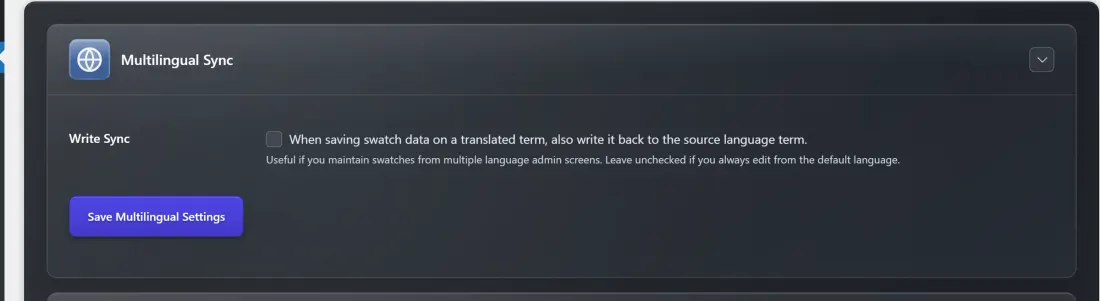
Check Write Sync — "When saving swatch data on a translated term, also write it back to the source language term."
- The note reads: "Useful if you maintain swatches from multiple language admin screens. Leave unchecked if you always edit from the default language."
Click Save Multilingual Settings.
Leave this unchecked if you always manage swatches from your main language — the automatic read fallback already covers you.
What Customers See
Customers see the same swatches on every language version of your store, automatically:
- A shopper on your English shop picks the Red swatch as normal.
- A shopper on your Spanish shop sees the identical red swatch on the "Rojo" option — the same color box (or image, or label) you configured once on the English "Red."
- A shopper on your French shop likewise sees your red swatch on "Rouge."
There is nothing different for them to learn or click. The swatches simply look consistent and correct no matter which language they're browsing in — color swatches match, image swatches show the same picture, and label/text swatches carry the same styling. (The term name still comes from the translation, so labels read in the shopper's language where you've translated them.)
Tips for Best Results
- Edit from one language. The simplest workflow is to manage all swatches on your default language and let the automatic read fallback do the rest. You only need Write Sync if you genuinely edit swatches from translated-language screens.
- Connect your terms as translations first. The sync relies on WPML/Polylang already knowing that "Red," "Rojo," and "Rouge" are translations of one another. If a translated term isn't linked to its source in your translation plugin, it has nothing to inherit from.
- Set swatches before translating, when you can. Configure your color/image/label swatches on the source terms early, so every new translation inherits a correct swatch the moment it's created.
- Override only when you mean to. If you deliberately want a different swatch for one language (rare, but possible), just save a swatch directly on that translated term — its own value takes priority over the fallback.
- It's safe to leave enabled. With no translation plugin active, the module does nothing and adds no overhead, so there's no downside to keeping it on.
Frequently Asked Questions
Q: Which translation plugins are supported? A: WPML and Polylang. The module detects whichever one is active automatically (it checks for WPML first). No other translation plugins are supported.
Q: Do I have to press a "Sync now" button? A: No. There is no manual sync button. The core behavior — translated terms inheriting swatches from the source language — happens automatically as soon as the module and a supported translation plugin are active.
Q: Where do I set swatches in a multi-language store? A: On your default (source) language terms, exactly as you'd set any swatch (Chapter 2). The translations pick them up automatically.
Q: What's the difference between the automatic behavior and "Write Sync"? A: The automatic read fallback (always on) makes translated terms display the source swatch when they have none of their own. Write Sync (optional, under Tools) is the reverse direction: it lets you edit swatches from a translated-language screen and pushes those edits back to the source and out to all other translations.
Q: Can one language show a different swatch on purpose? A: Yes. Save a swatch directly on that translated term. Its own value is always used in preference to the source-language fallback.
Q: Will this overwrite my translated term names or other fields? A: No. Only Chiseiko Essential Swatches' swatch data is read or copied. Term names, descriptions, and other fields are never touched, so your translations stay intact.
Q: I enabled the module but the Tools settings are greyed out. Why? A: The Multilingual Sync card under Tools is only active when the module is enabled. Turn it on at WooCommerce → Chiseiko Essential Swatches Pro → Modules first, then return to Tools to find the Write Sync option.
Q: Does this slow down my site? A: No meaningful impact. The sync logic only does work for Chiseiko Essential Swatches' own swatch data, and when no translation plugin is active it does nothing at all.