
Chiseiko Essential Swatches Pro
Variation Threshold Override
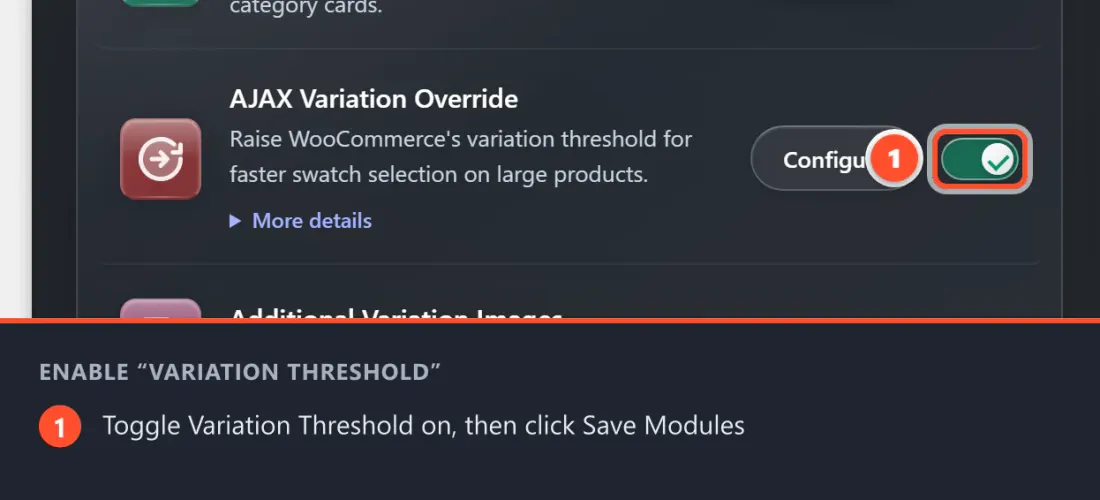
Pro module. Requires Chiseiko Essential Swatches Pro with an active license. Enable the "Variation Threshold Override" module at WooCommerce → Chiseiko Essential Swatches Pro → Modules.
What Problem Does This Solve?
WooCommerce has a built-in rule called the variation threshold. The default limit is 30 variations.
When a product has 30 or fewer variations, WooCommerce loads all of their data (prices, stock, images) directly into the product page when it first loads. Everything is ready immediately.
When a product has more than 30 variations, WooCommerce does NOT load everything upfront. Instead it fetches variation data on-demand via an invisible network request the first time a customer interacts with the swatches.
This causes two problems for swatch-heavy stores:
- Swatches don't show out-of-stock state right away — the crossed-out styling only appears after that network request completes.
- There is a noticeable delay on first swatch click — the page feels slow.
The Variation Threshold Override module lets you raise that limit higher so more (or all) of your variation data is loaded upfront, making swatches instant and accurate from the moment the page loads.
Enabling the Module
- Go to WooCommerce → Chiseiko Essential Swatches Pro → Modules.
- Check the box next to Variation Threshold Override.
- Click Save Modules.
Global Settings
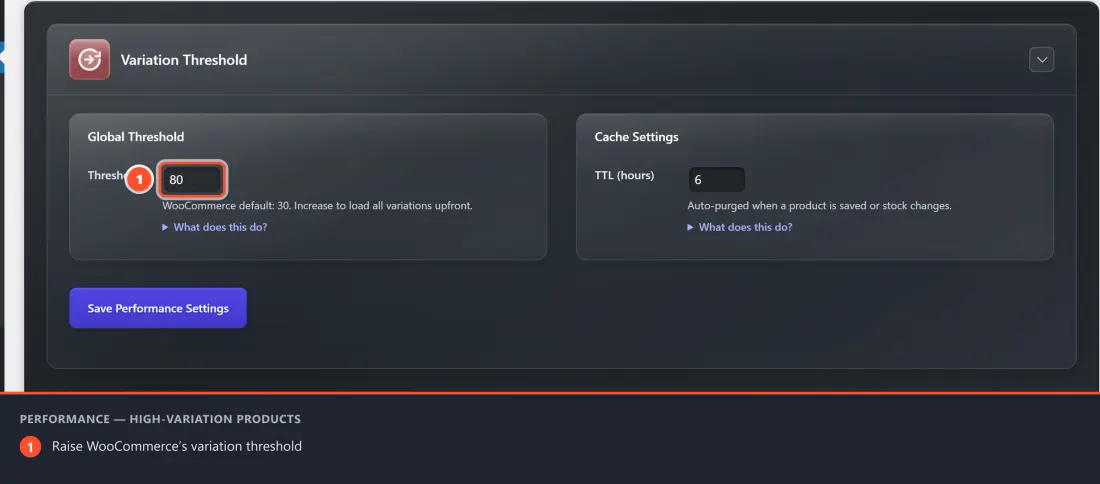
Go to WooCommerce → Chiseiko Essential Swatches Pro → Performance tab.
Setting: Global Variation Threshold
What it does: Sets the new upper limit for how many variations are loaded upfront, across all products in your store.
Default value: 30 (WooCommerce's own default — the module ships with this so you see where you started from)
Recommended values:
| Situation | Suggested Value |
|---|---|
| Most products have under 50 variations | 50 |
| Some products have up to 100 variations | 100 |
| You want all variations always loaded upfront | 500 or 999 |
How to change it:
- Go to WooCommerce → Chiseiko Essential Swatches Pro → Performance.
- Type your desired number into the Global Variation Threshold field.
- Minimum: 1
- Maximum: 9999
- Click Save Performance Settings.
A word of caution: Loading a very high number of variations upfront (e.g., a product with 500+ variations) adds data to the page and can slow it down. For products with an extremely large number of variations, consider using the per-product override (described below) to keep the global threshold lower while specifically raising it only for the products that need it.
Setting: Cache TTL (hours)
On the Performance tab this field lives in the Cache Settings card and is labeled simply TTL (hours).
What it does: When WooCommerce still needs to load some variations via a network request (for products above your threshold), this plugin caches those responses so that repeated visits to the same product don't trigger a fresh database lookup each time.
Default value: 6 hours
How to adjust it: Same as the Archive Swatches cache — enter a number between 1 and 72 and click Save Performance Settings.
The cache clears automatically when you save a product or change its stock level.
Per-Product Override
Sometimes you have one or two specific products with an unusually large number of variations. Rather than raising the global threshold (which affects every product in your store), you can set a custom threshold just for those individual products.
How to set a per-product threshold
- Go to Products and open the product you want to customize.
- In the Product data box, click the Swatches tab, then open the Advanced Settings section.
- Find the field labeled Variation Threshold.
- Leave it blank to use the global setting, OR enter a specific number to override it for this product only.
- Click Update to save.
Example:
- Your global threshold is set to 50.
- One product has 200 variations, but you want all 200 loaded upfront.
- Enter
200in the per-product field on that one product. - All other products continue to use 50.
How to Know if a Product is Affected
You can check whether a product has more variations than the current threshold:
- Open the product in the editor.
- Go to the Variations tab.
- Count the number of variations listed (or look at the total shown).
- If it is higher than your global threshold setting (and you haven't set a per-product override), that product will still use deferred (on-demand) loading.
Tips
- Start with 100. For most stores this covers the vast majority of products without affecting page performance.
- Use per-product overrides sparingly. Only override on products that are actually causing slow swatch experiences.
- Test after changing. After updating the threshold, visit one of your higher-variation products and check that swatches show out-of-stock correctly right away (without clicking first).
Frequently Asked Questions
Q: How do I know if this module is actually doing anything? A: If your products have fewer than 30 variations, this module won't make any visible difference — WooCommerce already loads that data upfront. You will see a benefit when products have more variations than the threshold.
Q: Will raising the threshold make my pages slower? A: Only if the variation data is very large. For most products, even raising to 100–200 makes no noticeable difference to page load. Very complex products (500+ variations) may see a slight increase in page size.
Q: Can I set the threshold to 0 to make everything use AJAX? A: No. The minimum is 1. But if you wanted to keep AJAX loading for everything, you would simply disable this module — WooCommerce's default of 30 applies on its own.