
Chiseiko Essential Swatches Pro
Variable → Simple Migration
Pro module. Requires Chiseiko Essential Swatches Pro with an active license. Enable the "Variable → Simple Migration" module at WooCommerce → Chiseiko Essential Swatches Pro → Modules.
⚠️ Back up your store first. This tool creates and changes products. Always take a full backup before migrating.
What Does This Module Do?
A WooCommerce variable product is a single product with built-in variations — for example, one "Classic Tee" product that contains Red, Blue, and Green variations. All of those colors live on one product page, at one URL, and shoppers switch between them with the variation dropdowns or swatches.
The Variable → Simple Migration tool converts that one variable product into several separate simple products — one simple product for each variation. So "Classic Tee" becomes "Classic Tee — Red," "Classic Tee — Blue," and "Classic Tee — Green," each a standalone product with its own page, its own URL, its own image, its own price, and its own stock.
Crucially, the tool doesn't just scatter those new products around your store. It links them back together using the same Linked Simple Products system described in Chapter 6. So even though each color is now its own product, the swatches still appear on each one, and clicking a swatch takes the shopper to that color's dedicated page. From a shopper's point of view, the product still feels like one connected family — but behind the scenes it's now several SEO-friendly individual products.
In short:
- Before: one variable product, one URL, variations hidden behind a dropdown/swatch.
- After: one simple product per color, each with its own URL and page, all linked together with swatches.
The conversion runs in the background on your server. As the tool itself states: "Migration runs server-side — you can close your browser safely."
Why Would I Use This?
The most common reason is SEO. Search engines index pages by URL. A variable product gives you a single page for all your colors, so "Classic Tee Red" and "Classic Tee Blue" can never rank on their own — they share one URL. After migration, each color has its own URL and its own page, which means each one can be indexed, ranked, shared, and bookmarked independently.
Other reasons store owners migrate:
- Per-color landing pages for ads or email campaigns that link straight to a specific color.
- Cleaner reporting — sales, stock, and analytics are tracked per product instead of buried inside variations.
- Per-color content — you can give each color its own description, gallery, reviews, and metadata.
To protect the SEO value you already have, the tool can set up 301 redirects from the old variation URLs to the new product pages, so existing Google rankings and bookmarks are carried over rather than lost.
Before You Begin (backup!)
This tool creates new products and changes your original product. It is safe and reversible within a time window (see Undoing a Migration below), but you should still treat it like any major data change.
- Take a full backup of your site and database first. Use your host's backup tool or a backup plugin. This is the single most important step.
- Try one product first. Migrate a single, non-critical product and review the result before doing your whole catalog.
- Run it during quiet hours if you can, so shoppers aren't browsing a product mid-conversion.
- Make sure WooCommerce is active and healthy — the migration runs as a background job (via WooCommerce's Action Scheduler), so WooCommerce must be running normally.
Enabling the Module
- Go to WooCommerce → Chiseiko Essential Swatches Pro → Modules.
- Check the box next to Variable → Simple Migration.
- Click Save Modules.
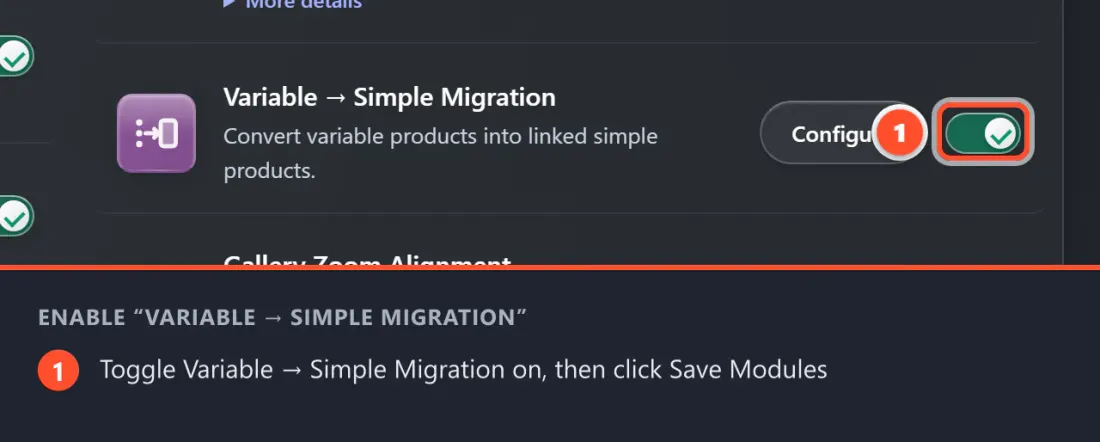
Once enabled, a new Migration tab appears under WooCommerce → Chiseiko Essential Swatches Pro. If the module is off, the Migration tab shows a prompt telling you to enable the module first.
Running a Migration
Go to WooCommerce → Chiseiko Essential Swatches Pro → Migration.
Step 1 — Pick the product
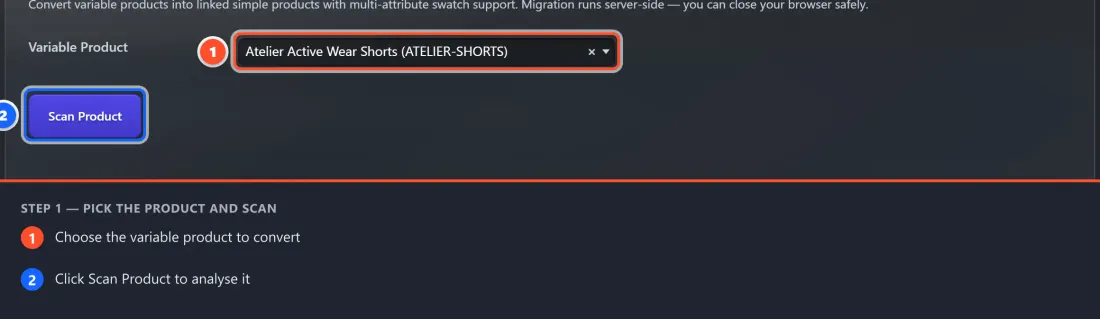
- In the Variable Product field, start typing a product name. The search box ("Search for a variable product…") suggests matching products.
- Select the variable product you want to convert.
- Click the Scan Product button.
Step 2 — Review the pre-flight check
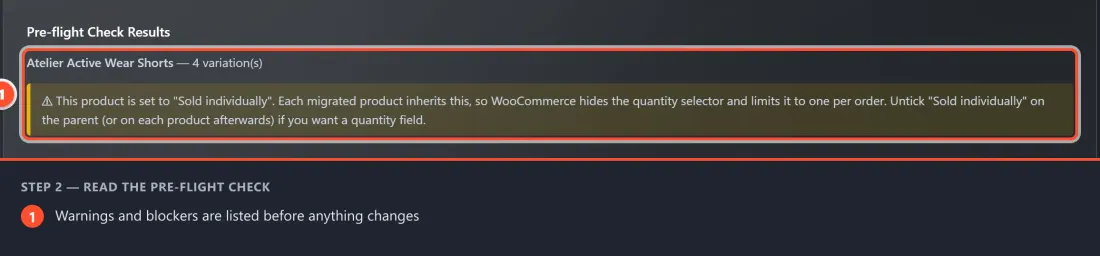
The tool scans the product and shows a Pre-flight Check Results panel. This warns you about anything worth knowing before you commit — for example, variations missing SKUs (which can be auto-generated), variations with no price, draft/disabled variations (which are skipped), custom attributes that will be converted, parent-level stock, or a "Sold individually" parent (see the note below). Some issues are warnings (migration can still proceed); a few — like slug collisions with existing products — are errors that you must resolve first.
Note — "Sold individually" hides the quantity box. If the original variable product has Sold individually ticked (Product data → Inventory), every migrated product inherits it, and WooCommerce then hides the quantity selector and limits the order to one item — this is standard WooCommerce behaviour, not a bug. The pre-flight check flags this up front. If you want a quantity box on the new products, untick Sold individually on the parent before migrating, or on each created product afterwards.
Step 3 — Choose your options
If the product can be migrated, a Migration Options panel appears.
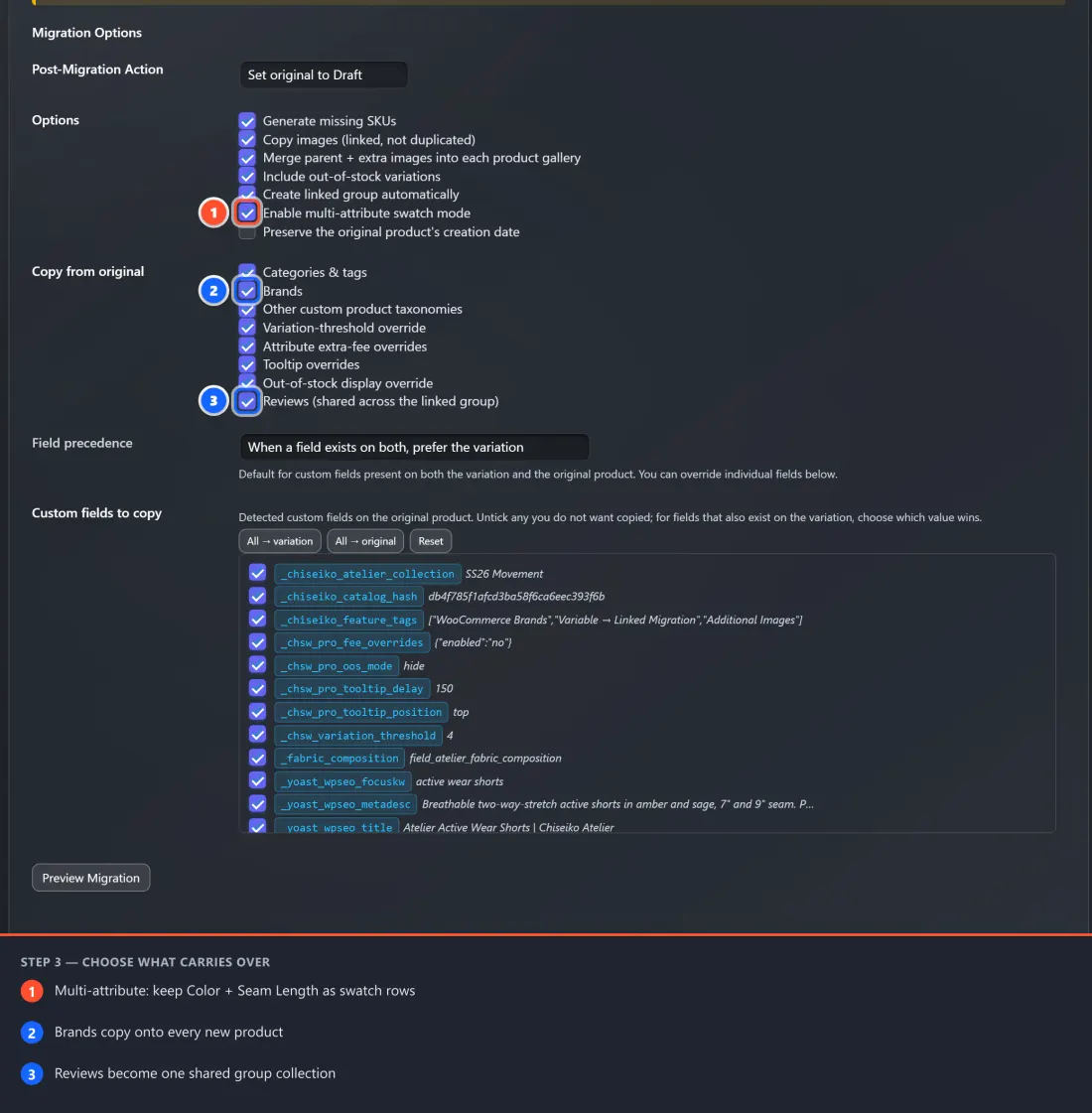
- Post-Migration Action — what happens to the original variable product:
- Set original to Draft (default) — the original is hidden from the store but kept so you can restore it.
- Trash original — the original is moved to the Trash.
- Keep original published — the original stays live alongside the new products.
- Options (all on by default unless noted):
- Generate missing SKUs — auto-creates SKUs for variations that don't have one.
- Copy images (linked, not duplicated) — reuses the existing images rather than duplicating files.
- Merge parent + extra images into each product gallery — adds the original's featured image, gallery, and the variation's additional images to each new product's gallery (deduplicated; the variation's own image stays the main image).
- Include out-of-stock variations — creates products even for variations that are out of stock.
- Create linked group automatically — links the new products together so swatches keep working.
- Enable multi-attribute swatch mode — supports products with more than one swatch attribute (e.g. Color and Size).
- Preserve the original product's creation date (off by default) — copy the original's publish date instead of using a fresh one.
- Copy from original (each independently toggleable, all on by default) — everything from the original product is carried onto each new product:
- Categories & tags, Brands, and other custom product taxonomies.
- The per-product Pro overrides: variation-threshold, attribute extra-fee, tooltip, and out-of-stock display overrides.
- Reviews — the original product's reviews are copied into the new linked group's shared collection (see below).
- All other custom fields — SEO data (Yoast/Rank Math/SEOPress), ACF fields, and any other plugin meta are copied automatically. Sensitive keys (anything that looks like a password/token/API key/licence) and internal WooCommerce counters are never copied.
- Field precedence — when the same custom field exists on both the variation and the original product, choose which value wins (default: the variation). Use the Custom fields to copy list to untick individual fields you don't want, or set a per-field winner; the All → variation / All → original / Reset buttons set them in bulk.
Shared reviews across the group
When Reviews is on, the original product's reviews are seeded into the new linked group and shown on every member's page as a combined collection with a single average rating — so a shopper switching colors sees the same reviews and star rating throughout. New reviews left on any member are added to the shared collection automatically. This is powered by the Linked Reviews module (enabled by default); if you turn that module off, reviews are still copied but display per-product until you re-enable it. Your original reviews are never moved or deleted, so an Undo restores everything cleanly.
Step 4 — Preview
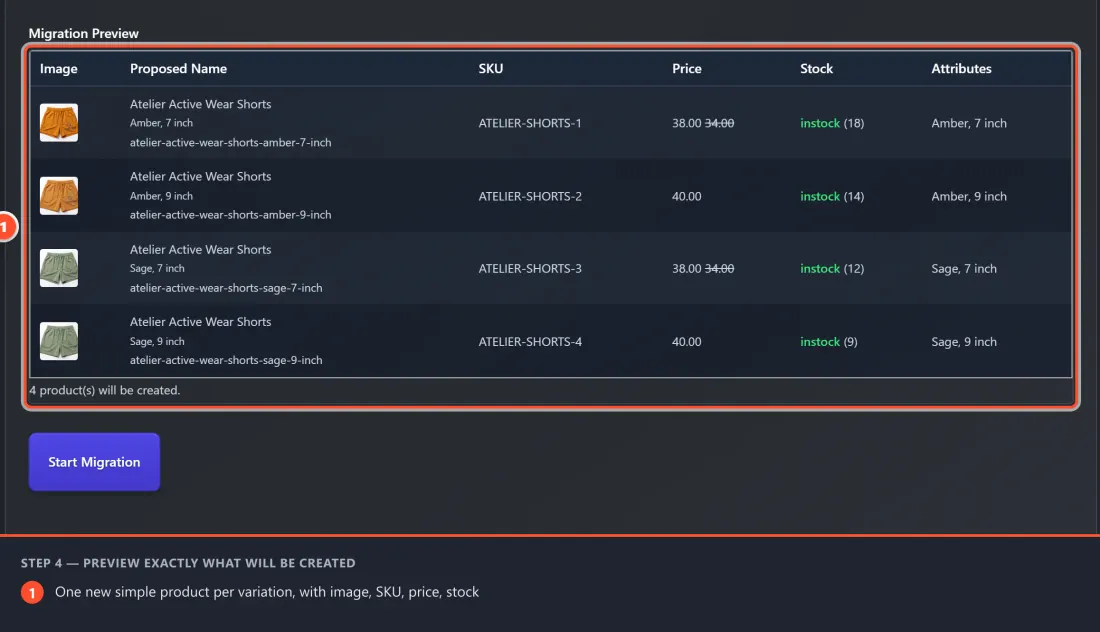
Click Preview Migration. A Migration Preview table shows exactly what will be created — one row per variation, with Image, Proposed Name, SKU, Price, Stock, and Attributes. Read this carefully; it's your last look before anything is created.
Step 5 — Start
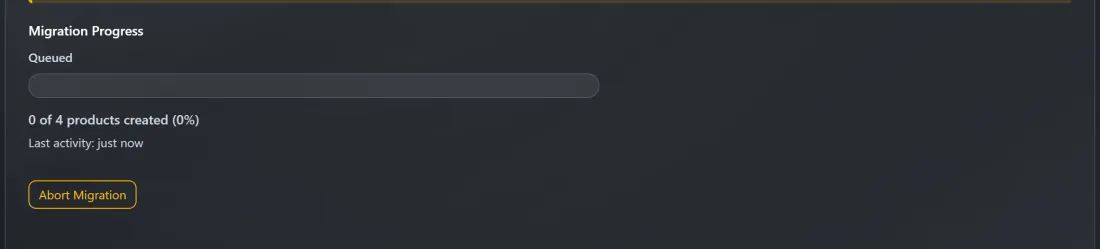
When you're happy with the preview, click the large Start Migration button. A Migration Progress section appears with a live progress bar. Because the work runs on the server, you can leave the page or close your browser and come back later. If you ever need to stop, there's an Abort Migration button (products already created stay in place).
Reviewing the Migration History
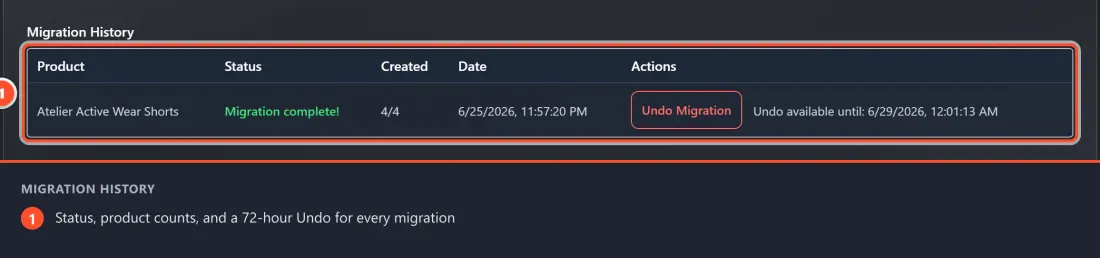
Every migration is logged in the Migration History table at the bottom of the Migration tab. The columns are:
| Column | What it shows |
|---|---|
| Product | The name of the original variable product that was migrated. |
| Status | The outcome — Complete, Rolled back, Failed, Queued, Processing, Completing, or Aborted. |
| Created | How many products were created out of the total (for example, 3/3). |
| Date | When the migration started. |
| Actions | The available action for that row — typically the Undo Migration button while the undo window is open. |
If you have many migrations, the table is paginated with ← Previous / Next → controls.
Undoing a Migration
The tool has a built-in rollback, available for a limited time after a migration completes — the undo window is 72 hours.
- In the Migration History table, find the completed migration (Status: Complete).
- In the Actions column, click the Undo Migration button. Next to it you'll see an "Undo available until:" date showing your deadline.
- A confirmation appears: "This will DELETE all created products and restore the original. Continue?" Click OK to proceed.
- The button changes to "Rolling back…" while the rollback runs, then shows a success message such as "Rollback complete."
When you undo, the tool:
- Deletes all the simple products it created (permanently — they do not go to Trash).
- Removes the 301 redirects it added for those products.
- Restores the original variable product to exactly the status it had before migration (so a product that was set to Draft or trashed is brought back).
After the 72-hour window passes, the Undo Migration button disappears and the row shows "Undo window expired" instead. At that point, undoing automatically is no longer possible — your backup is your safety net. A migration that has already been rolled back shows "Rolled back" with the date in the Actions column and cannot be undone again.
Tips for Best Results
- Migrate one product first and review it end-to-end — check the new product pages, the swatches, the prices, the stock, and the redirects from the old URLs.
- Keep "Set original to Draft" for your first runs. It's the safest Post-Migration Action because the original is preserved and easy to restore.
- Resolve pre-flight errors before migrating, especially slug collisions. Warnings are usually fine to proceed with, but read them.
- Leave "Create linked group automatically" on. This is what keeps the swatches working across the new separate products. Turning it off leaves you with disconnected products.
- Add SKUs in advance if you care about their format. Auto-generated SKUs are derived from the parent SKU and attribute values; setting your own beforehand gives you control.
- Don't close WooCommerce or deactivate the plugin mid-migration. The background job needs WooCommerce running to finish.
- Decide within 72 hours. If you're unsure whether you like the result, review it promptly — that's the window in which the one-click undo is available.
Frequently Asked Questions
Q: What happens to my original variable product? A: That's your choice, set by the Post-Migration Action option: it's set to Draft (default — hidden but kept), moved to Trash, or kept published. With the default, the original is preserved so it can be restored if you undo.
Q: Will I lose my Google rankings for the old product? A: The tool sets up 301 redirects from the old variation URLs to the new product pages, which is the standard way to pass SEO value to a new URL. Existing links and bookmarks are forwarded automatically.
Q: Can I undo a migration? A: Yes, within 72 hours of completion. Click Undo Migration in the Migration History table. It permanently deletes the created products, removes the redirects, and restores the original product. After 72 hours the button is replaced by "Undo window expired," and you'd rely on your backup instead.
Q: Do the swatches still work after migrating? A: Yes — as long as Create linked group automatically is left on. The new simple products are linked together (the same system as Chapter 6 — Linked Simple Products), so swatches appear on each product and switch the shopper between the color pages.
Q: Do I have to keep my browser open? A: No. The migration runs on the server in the background. You can close your browser and return later — the Migration Progress view and the Migration History table will reflect the current state.
Q: What about variations with no price or no SKU? A: The pre-flight check warns you. Missing SKUs can be auto-generated (Generate missing SKUs). Variations with no price are created but won't be purchasable until you add a price. Draft/disabled variations are skipped.
Q: Can I migrate products that have more than one attribute (Color and Size)? A: Yes. Leave Enable multi-attribute swatch mode on so the linked swatches handle products with more than one swatch attribute.
Q: The migrated products have no quantity box — is the migration broken? A: No. This happens when the original product was set to Sold individually (Product data → Inventory). That flag carries over to the new products, and WooCommerce intentionally hides the quantity selector and limits each order to one — exactly as it does for any "sold individually" product. The pre-flight check warns you about this before you migrate. To get a quantity box back, untick Sold individually on the original product before migrating, or on each created product afterwards.
Q: Something looks stuck — what do I do? A: The progress view will flag a stall and offer a Continue Migration option. There's also a Diagnostics & Support Export section that generates a support report (it does not include license keys, customer data, or pricing) you can share with support.