
Chiseiko Essential Swatches Pro
Quick View Compatibility
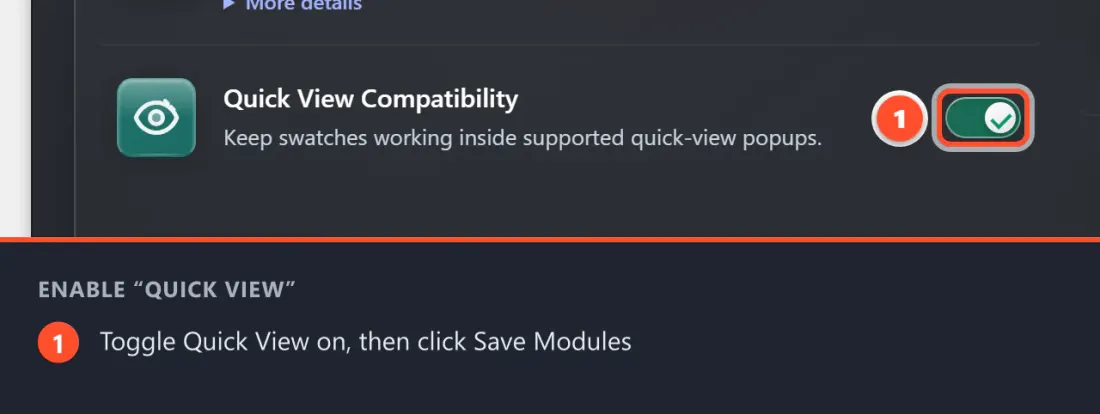
Pro module. Requires Chiseiko Essential Swatches Pro with an active license. Enable the "Quick View Compatibility" module at WooCommerce → Chiseiko Essential Swatches Pro → Modules.
What Does This Module Do?
Many WooCommerce themes and plugins offer a Quick View feature. When a customer is browsing your Shop page, they can click a "Quick View" button (or an eye icon) on a product card, and a popup window — also called a modal — slides open right there on top of the shop grid. This popup shows the product's photo, price, and options without the customer ever leaving the shop page. It is a fast way to peek at a product and add it to the cart.
Here is the catch. These popups are usually loaded on the fly — the theme or plugin fetches the product's contents in the background the moment the shopper clicks, and drops them into the popup. Because that product markup arrives after the page has already finished loading, Chiseiko Essential Swatches never gets a chance to set up its swatches inside it. The result: the popup opens, but instead of your colorful swatch buttons, the customer sees the plain WooCommerce dropdown menus — or nothing usable at all.
The Quick View Compatibility module solves this. It quietly watches your shop page for any product options that appear inside a freshly-opened popup, and the moment it spots them, it re-initializes the swatches inside that popup. The customer gets the same beautiful, clickable color and image swatches inside the Quick View popup that they would see on the full product page.
In plain terms: this module makes your swatches show up and work correctly inside Quick View popups. Without it, swatches inside those popups would be missing or broken.
Enabling the Module
- Go to WooCommerce → Chiseiko Essential Swatches Pro → Modules.
- Check the box next to Quick View Compatibility.
- Click Save Modules.
That is all that is required. This module has no settings page of its own — there are no options to configure. Once enabled, it works automatically across your whole store, watching for Quick View popups wherever they open.
What the Customer Experience Looks Like
Here is a walkthrough of what a customer sees once the module is enabled:
- Customer visits your Shop page (or a product category page).
- They hover over a product card and click the theme's Quick View button (often an eye icon or a "Quick View" label).
- A popup window opens on top of the page, showing the product photo, price, and its options.
- Inside that popup, the product's color and image swatches now appear — exactly as they would on the full product page.
- The customer clicks a swatch inside the popup to choose a color or style. The price and product image update just as they normally would.
- The customer can add the item to the cart straight from the popup, then close it and keep browsing — never leaving the shop page.
Without this module, step 4 would fail: the popup would open with plain dropdowns or empty options instead of working swatches.
Tips for Best Results
- Confirm your theme or plugin's Quick View loads its content in the background. This module is built for the common modern style of Quick View that fetches the product into a popup on click. If your theme links to a full separate page instead of opening a popup, there is nothing to fix — swatches already work there normally.
- Test with your specific Quick View source. Quick View can come from your theme or from a separate plugin, and every one is built a little differently. After enabling the module, open a Quick View popup on your own live shop and confirm the swatches appear and respond to clicks.
- This pairs naturally with Interactive Archive Swatches. Many stores enable both so that customers can interact with swatches directly on the shop grid and inside Quick View popups.
- No configuration is needed. There is nothing to tune — leave it enabled and it handles every popup automatically.
- It only runs on shop and category pages. The module loads on your archive/shop pages, which is exactly where Quick View buttons live. It does not add any weight to your single product pages.
Frequently Asked Questions
Q: Do I need to configure anything after turning this on? A: No. This module has no settings page. Once you enable it in the Modules tab and click Save Modules, it works automatically everywhere a Quick View popup can open.
Q: My theme's Quick View popup still doesn't show swatches. What now? A: First, double-check the module is enabled in WooCommerce → Chiseiko Essential Swatches Pro → Modules. Then confirm the popup actually loads its content into a popup (rather than redirecting to a separate page). If swatches still do not appear, your Quick View source may build its popup in an unusual way — see Chapter 24 — Troubleshooting for next steps.
Q: Which Quick View tools are supported? A: The module is designed to work generally with any theme or plugin Quick View that opens a popup and loads the product's options into it in the background. It is not tied to one specific product — it watches for the product options to appear and sets up swatches as soon as they do.
Q: Does enabling this slow down my shop page? A: No. The module loads only on shop and category pages, and its script runs in the background without delaying the page from appearing. It does nothing until a Quick View popup actually opens.
Q: Will the swatches inside the popup behave the same as on the product page? A: Yes. Once re-initialized, the swatches inside the popup are the real Chiseiko Essential Swatches — clicking them selects options, swaps images, and updates the price exactly as they do on the full product page.