
Chiseiko Essential Swatches Pro
Pro License & Modules
This chapter covers how to activate your Chiseiko Essential Swatches Pro license and how to turn individual Pro modules on or off.
Skip this chapter if you are only using the free plugin. Everything in Chapters 1–3 works without a Pro license.
Opening the Pro Settings Page
- In your WordPress admin, go to WooCommerce → Chiseiko Essential Swatches Pro.
You will see a page with eight tabs across the top:
| Tab | What It Contains |
|---|---|
| Dashboard | At-a-glance overview of license status, module summary, and quick links |
| Modules | Turn each Pro feature on or off using card-based toggle switches |
| Display Settings | Archive swatches and advanced styling settings (shapes, tooltips, OOS display) |
| Performance | Variation threshold and caching settings for high-variation products |
| Tools | CSV Import/Export, Auto-Assign Images, and Multilingual Sync |
| Migration | Convert a variable product into linked simple products |
| User Guide | This bundled documentation, browsable right inside the admin |
| License | Activate or deactivate your license key |
The Dashboard tab is the default landing page. It gives you a quick overview of everything without clicking through multiple tabs.
The Dashboard Tab
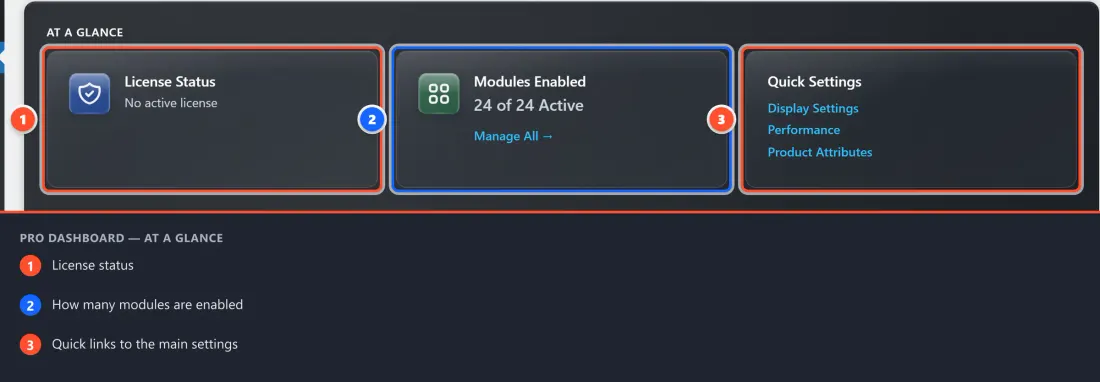
The Dashboard shows three information cards at the top:
- License Status — Shows your current license state (Active, Expired, No License, etc.) with a link to activate if needed.
- Modules — Shows how many of your modules are enabled (e.g., "3 of 24 enabled") with a link to manage them.
- Quick Settings — Links to Display Settings, Performance, and Product Attributes for fast navigation.
Below the cards is a Module Overview list showing each module with:
- Its icon and name
- A product-type badge indicating which products benefit from the module:
- "For Simple Products" — modules relevant to simple product listings
- "For Variable Products" — modules relevant to products with variations
- "For All Products" — modules that work with any product type
- An enabled/disabled status indicator
- A "Configure →" link to jump to that module's settings
If your license is not yet activated, you will also see a Getting Started checklist to guide you through the setup process:
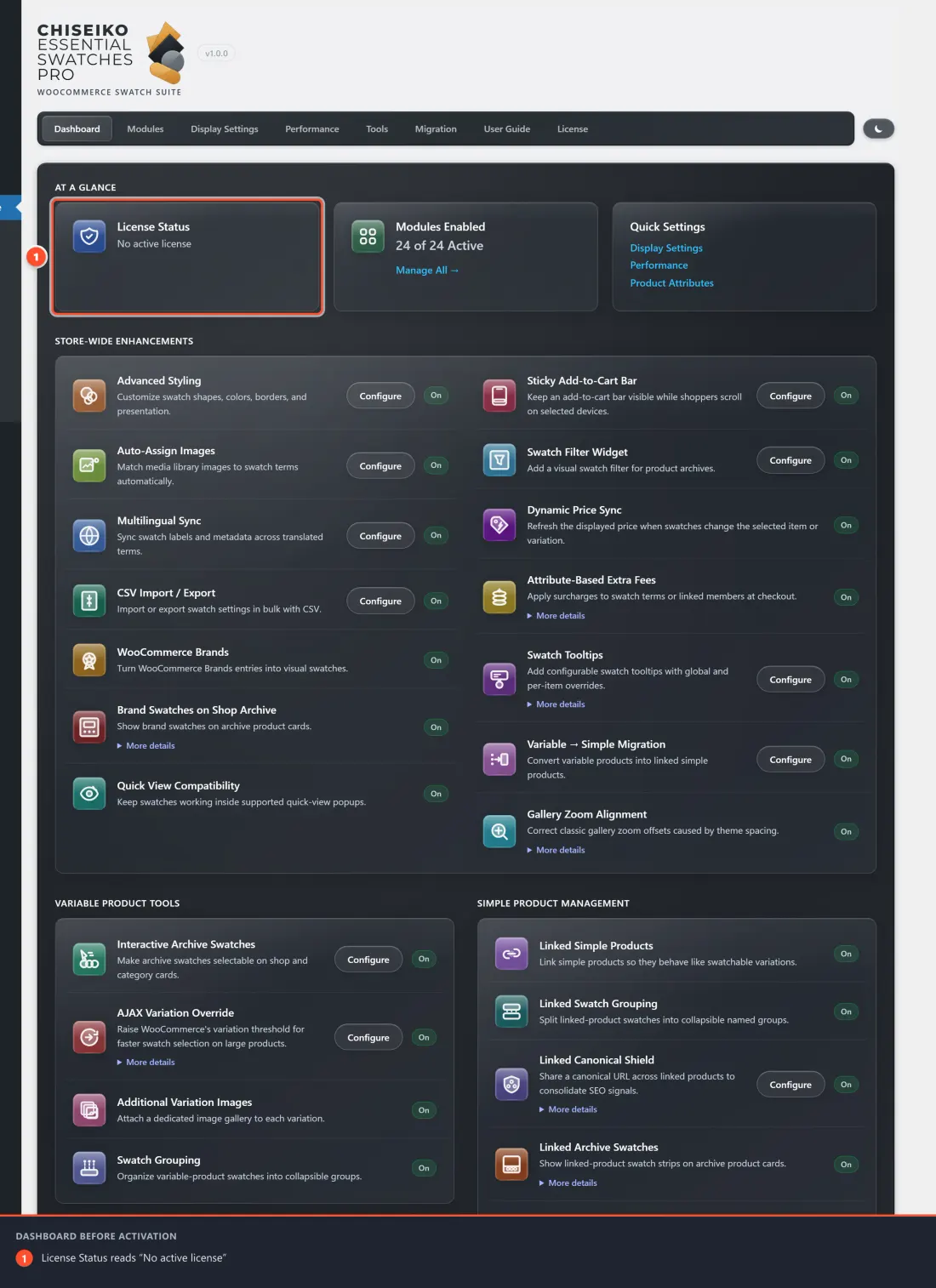
Once your license is active, the Dashboard shows your status and module summary at a glance:
The License Tab
Understanding License Status
On the License tab, you will see a License Status badge. It can show:
| Status | What It Means |
|---|---|
| Active | Your license is valid — all Pro features are available |
| No license | No license key has been entered yet |
| Expired | Your license has expired — renew at chiseikotech.com |
| Expired (grace period) | Your license expired recently — Pro features still work for up to 72 hours while you renew |
| Invalid | The key was not recognized — check for typos or contact support |
Activating Your License for the First Time
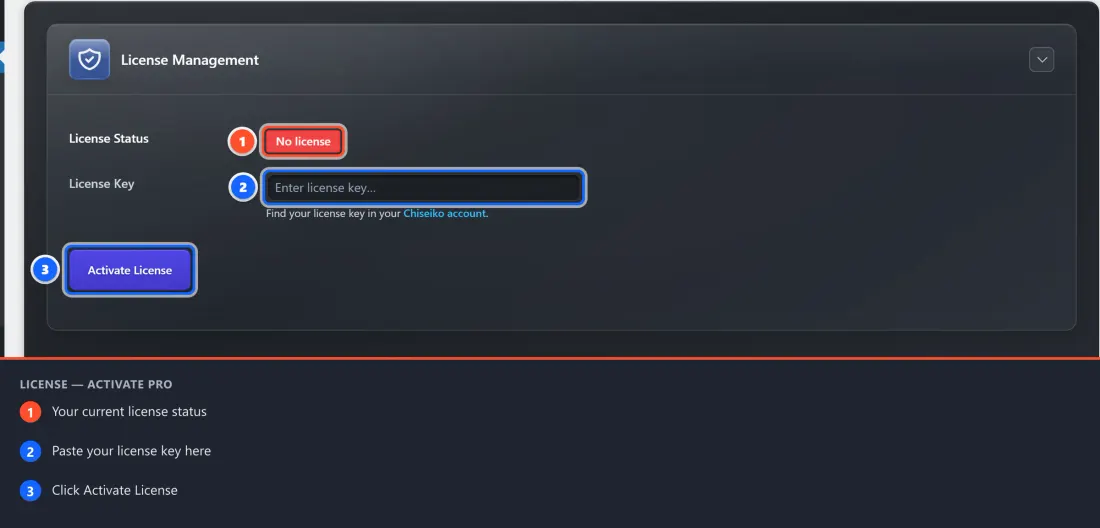
- Go to WooCommerce → Chiseiko Essential Swatches Pro → License tab.
- In the License Key field, paste your license key.
- Your license key looks something like:
CHISEIKOESSWPR-XXXX-XXXX-XXXX-XXXX - Find it in your Chiseiko account
- Your license key looks something like:
- Click Activate License.
The page will briefly show "Activating…" and then refresh. The status badge will change to Active when successful.
Cannot find your license key? Log in to your account at chiseikotech.com/account and look under "Licenses" or "Orders".
Re-checking Your License
If your license shows as expired but you have already renewed it, click Re-check License. This forces the plugin to contact the licensing server and update your status immediately (it normally does this automatically every 12 hours).
Deactivating Your License
If you are moving the plugin to a new site or troubleshooting, you can deactivate your license:
- Go to the License tab.
- Click Deactivate License.
- Confirm the prompt.
The license is removed from this site and can be activated on another.
Important: Pro features will stop working immediately after deactivation. Your settings and data are preserved — everything will come back the moment you reactivate.
After Expiry — Grace Period
If your subscription lapses, Pro features keep working for 72 hours so your store is not suddenly broken. During this period the status badge shows "Expired (grace period)". After 72 hours, Pro modules stop running until you renew.
To renew, visit chiseikotech.com/pricing and then click Re-check License on the settings page.
The Modules Tab
What are Modules?
Think of modules as individual features that you can switch on or off. This lets you use only what you need and keep your site as lean as possible.
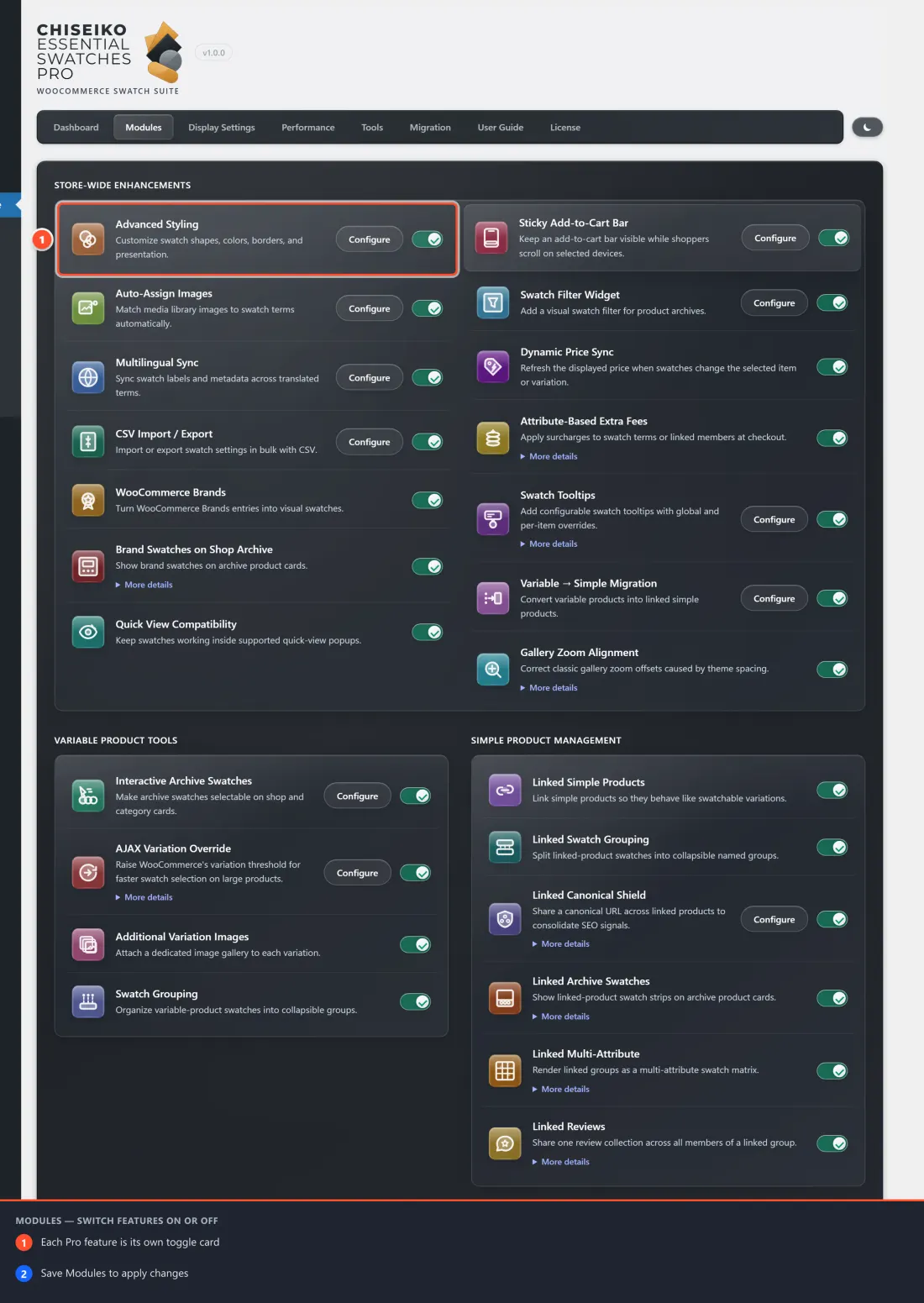
Module Cards
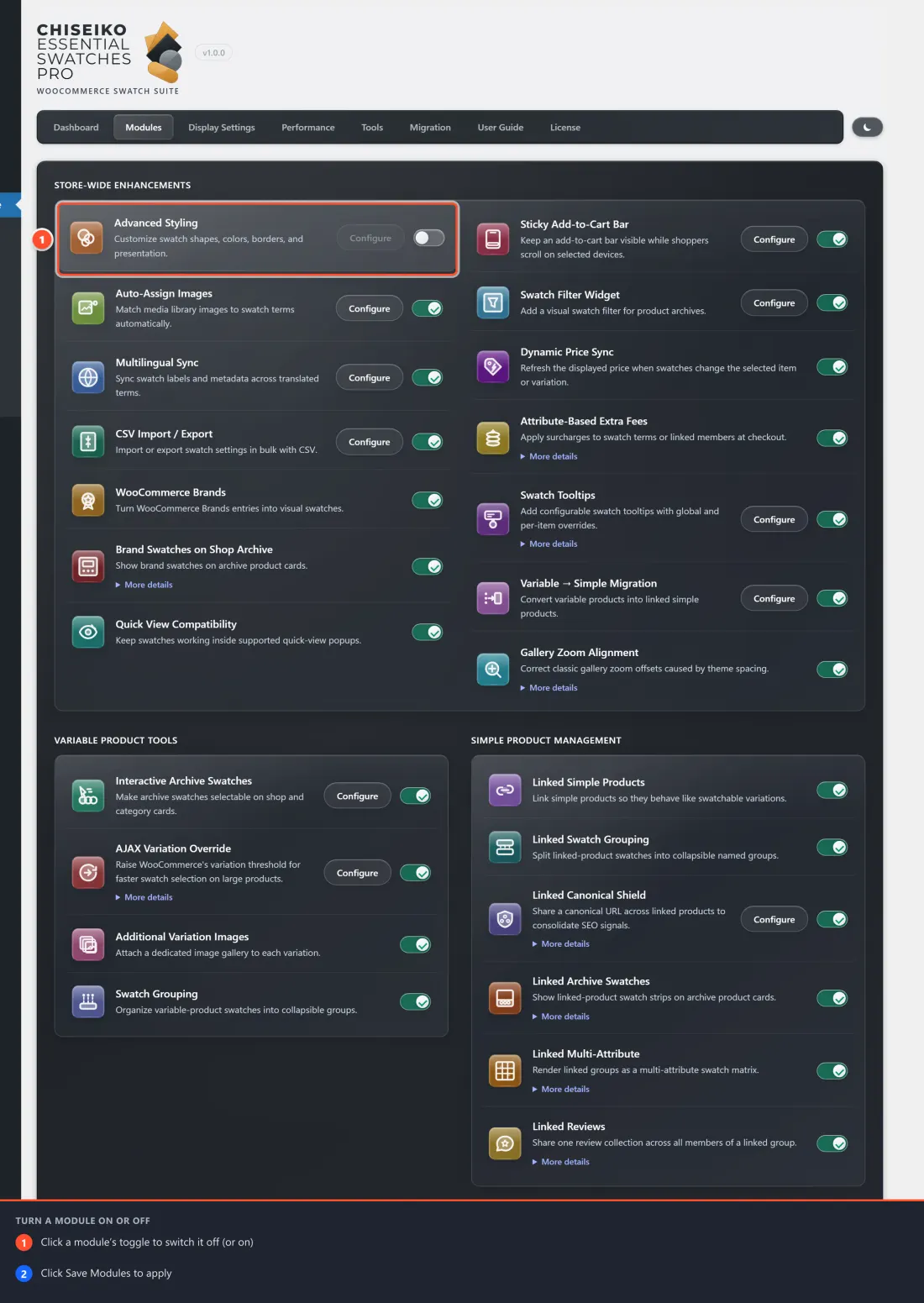
Each module is displayed as a card with:
- An icon and name at the top
- A product-type badge showing which products benefit from it
- A description of what the module does
- A toggle switch to enable or disable the module
- A "Configure →" link to jump directly to that module's settings (where applicable)
The twenty-four modules are grouped by the product types they help with:
Store-wide (For All Products):
| Module | Badge | What It Does |
|---|---|---|
| Advanced Styling | For All Products | Customize swatch shapes, colors, borders, and presentation (gradient builder, custom radius, OOS display modes, style presets) |
| Swatch Tooltips | For All Products | Add configurable swatch tooltips with global and per-item overrides |
| Swatch Filter Widget | For All Products | Add a visual swatch filter for product archives |
| WooCommerce Brands | For All Products | Turn WooCommerce Brands entries into visual swatches |
| Brand Swatches on Shop Archive | For All Products | Show brand swatches on archive product cards (requires WooCommerce Brands) |
| Dynamic Price Sync | For All Products | Refresh the displayed price when swatches change the selected item or variation |
| Attribute-Based Extra Fees | For All Products | Apply surcharges to swatch terms or linked members at checkout |
| Sticky Add-to-Cart Bar | For All Products | Keep an add-to-cart bar visible while shoppers scroll on selected devices |
| Quick View Compatibility | For All Products | Keep swatches working inside supported quick-view popups |
| Multilingual Sync | For All Products | Sync swatch labels and metadata across translated terms (WPML and Polylang) |
| CSV Import / Export | For All Products | Import or export swatch settings in bulk with CSV |
| Auto-Assign Images | For All Products | Match media library images to swatch terms automatically |
| Variable → Simple Migration | For All Products | Convert variable products into linked simple products |
| Gallery Zoom Alignment | For All Products | Correct classic gallery zoom offsets caused by theme spacing |
For Variable Products:
| Module | Badge | What It Does |
|---|---|---|
| Interactive Archive Swatches | For Variable Products | Extends the Free interactive archive swatches with linked-product awareness and brings the same clickable cards to the related-products strip on product pages |
| AJAX Variation Override (Variation Threshold) | For Variable Products | Raise WooCommerce's variation threshold for faster swatch selection on large products |
| Additional Variation Images | For Variable Products | Attach a dedicated image gallery to each variation |
| Swatch Grouping | For Variable Products | Organize variable-product swatches into collapsible groups |
For Linked Simple Products:
| Module | Badge | What It Does |
|---|---|---|
| Linked Simple Products | For Simple Products | Link simple products so they behave like swatchable variations |
| Linked Swatch Grouping | For Simple Products | Split linked-product swatches into collapsible named groups (requires Linked Simple Products) |
| Linked Canonical Shield | For Simple Products | Share a canonical URL across linked products to consolidate SEO signals (requires Linked Simple Products) |
| Linked Archive Swatches | For Simple Products | Show linked-product swatch strips on archive product cards (requires Linked Simple Products) |
| Linked Multi-Attribute | For Simple Products | Render linked groups as a multi-attribute swatch matrix, e.g. color + size (requires Linked Simple Products) |
| Linked Reviews | For Simple Products | Share one review collection across all members of a linked group — each member shows the union of the group's reviews and a combined rating (requires Linked Simple Products) |
Enabled modules appear with a blue accent border. Disabled modules are visually muted.
Enabling a Module
- Go to WooCommerce → Chiseiko Essential Swatches Pro → Modules tab.
- Click the toggle switch next to each module you want to enable. The toggle turns blue when enabled.
- Click Save Modules.
Note: The toggle switches are greyed out and cannot be changed if your license is not active. Activate your license on the License tab first.
Disabling a Module
- Click the toggle switch to turn it off (grey position).
- Click Save Modules.
Disabling a module stops it from running — it does not delete any of the settings or data you have configured for it. You can re-enable it at any time.
Which Modules Should I Enable?
Here is a quick guide:
- Just want nicer swatches on product pages? — You do not need any Pro modules. The Free plugin handles this well on its own.
- Want each color variant as its own listing? — Enable Linked Simple Products.
- Want swatches to be interactive on your Shop page? — Enable Interactive Archive Swatches.
- Have products with more than 30 variations that load slowly? — Enable Variation Threshold Override.
- Want to customize swatch shapes, add two-tone gradients, or show tooltips? — Enable Advanced Styling.
- Use WooCommerce Brands and want brand badges? — Enable WooCommerce Brands.
You can safely enable all modules at once — they are designed to work together.
The Other Settings Tabs
Display Settings
The Display Settings tab gathers the display-related settings for several modules in one place, including:
- Archive Swatches — cache TTL and AJAX add-to-cart settings
- Advanced Styling — swatch shape/size defaults, OOS display mode, and a live swatch preview that updates as you change settings
- Swatch Tooltips — tooltip position and delay (a separate module with its own card)
If a module is disabled, its settings section shows a helpful message with a link to enable it on the Modules tab. This prevents confusion about settings that have no effect.
Performance
The Performance tab contains:
- Variation Threshold — the global AJAX threshold override
- Variation Cache TTL — how long to cache variation JSON data
Each setting has a "What does this do?" expandable help section that explains the setting in plain language, including recommended values.
Detailed Settings Documentation
For detailed information about each module's settings:
- Chapter 7 — Interactive Archive Swatches (Display Settings → Archive Swatches)
- Chapter 8 — Variation Threshold (Performance tab)
- Chapter 9 — Advanced Styling (Display Settings → Advanced Styling)