
Chiseiko Essential Swatches Pro
Troubleshooting & FAQ
This chapter covers the most common problems and questions. Find your issue in the list below and follow the steps to resolve it.
Table of Contents
- Swatches Don't Appear on the Product Page
- Swatches Show as Text Pills Even Though I Set a Color
- The Swatch Color / Image Isn't Saving
- Out-of-Stock Swatches Don't Look Different
- I Changed the OOS Mode But Swatches Look the Same
- Swatches Don't Appear on the Shop Page
- Pro License Won't Activate
- Pro Module Checkboxes Are Greyed Out
- Linked Products Swatch Settings Are Missing
- Linked Product Swatches Don't Appear on the Product Page
- All Linked Group Members Show as Separate Cards on the Shop Page
- Archive Swatches Are Still Read-Only (Not Interactive)
- Clicking an Archive Swatch Doesn't Change the Product Image
- Swatch Shape Isn't Changing
- Tooltips Are Not Showing
- Gradient Builder Section Is Not Visible
- Gradient Swatch Shows as a Flat Color
- WooCommerce Brands Swatches Not Showing
- Swatches Are Slow to Respond on First Click (30+ Variations)
- The "Chiseiko Essential Swatches Pro" Menu Is Missing
- General: Things Broke After an Update
- Frequently Asked Questions
Swatches Don't Appear on the Product Page
Swatches are showing as plain dropdowns instead of clickable buttons.
Check these things in order:
Is the plugin active? Go to Plugins and confirm Chiseiko Essential Swatches shows as "Active".
Is the product type set to "Variable product"? Open the product, look at the Product data dropdown. If it says "Simple product", swatches will never appear. Change it to Variable product.
Is the attribute marked "Used for variations"? Open the product → Product data → Attributes. The attribute must have the "Used for variations" checkbox ticked. Save attributes and update the product.
Is the attribute a Global attribute? Custom attributes (created directly on one product, not from Products → Attributes) do not support swatch configuration. They will always show as text pills or dropdowns. Recreate them as global attributes.
Is WooCommerce up to date? Go to Dashboard → Updates. The plugin requires WooCommerce 8.0 or newer.
Is there a theme or plugin conflict? Temporarily switch to the default WordPress theme (Twenty Twenty-Four) and disable other plugins one by one to identify a conflict.
Swatches Show as Text Pills Even Though I Set a Color
You went to Products → Attributes → Configure terms, set a color, but the swatch still shows as a plain text button.
Check these things:
Did you save the term? After setting the color, did you click Update on the term edit screen? Changes are not saved automatically.
Did you set the Swatch Type to "Color" (not just pick a color)? The type dropdown must be set to Color before the color picker fields are saved. If the type is left on "— Select type —", the color is ignored.
Are you editing the right attribute? Make sure you are editing the attribute that is actually assigned to the product. For example, if your product uses
pa_color, edit the terms under the Color attribute — not a different one.Clear your cache. If you use a caching plugin (WP Rocket, W3 Total Cache, LiteSpeed Cache, etc.) or a CDN, clear all caches. Old cached pages may show outdated swatch data.
The Swatch Color / Image Isn't Saving
You click Update but the color resets or the image disappears.
Image uploader issue: Make sure you clicked "Use Image" in the media library popup before closing it. Simply selecting the image is not enough — you must confirm with the "Use Image" button.
Color picker issue: Click inside the hex field and type the color code manually (e.g.,
#ff6b6b). Sometimes dragging the color picker and then clicking Update quickly can lose the value. Typing it is more reliable.Permission issue: You need to have the Manage Product Terms permission in WordPress. If you are not the site administrator, ask your admin to check your user role.
Out-of-Stock Swatches Don't Look Different
All swatches look the same even when some variants are out of stock.
Is the variation actually set to Out of Stock? Open the product → Variations tab → expand a variation → check that Stock status is set to "Out of stock" (not simply that the quantity field is 0 without stock management being enabled).
Does your theme override the swatch CSS? Some themes have aggressive CSS that resets styles. Check if the issue occurs when using a default WordPress theme.
Are there more than 30 variations? If the product has more than 30 variations, WooCommerce doesn't load stock status upfront (this is the threshold issue described in Chapter 8). Enable the Variation Threshold Override module and raise the threshold to cover all your variations.
Have you chosen a display mode? The Pro plugin's Advanced Styling module has an OOS Display Mode setting (cross-out, blur, or hide). If the module is active and the mode is set, this controls how unavailable swatches look. See Chapter 9 — Advanced Styling for details.
I Changed the OOS Mode But Swatches Look the Same
You updated the OOS Display Mode in Advanced Styling settings but the swatches still look the same on the product page.
Clear your cache. Caching plugins (WP Rocket, W3 Total Cache, LiteSpeed Cache, etc.) and CDNs can serve old CSS. Clear all caches and reload the product page.
Is the Advanced Styling module enabled? Go to WooCommerce → Chiseiko Essential Swatches Pro → Modules and confirm Advanced Styling is checked.
Is the variation actually out of stock? Go to the product → Variations tab and confirm the stock status is explicitly set to "Out of stock" for the affected variation.
Did you click Save? After changing the OOS mode in the Advanced Styling card on the Display Settings tab, you must click Save Display Settings for the change to take effect.
Check for a per-product override. If the product has a per-product "Unavailable Swatch Style" set in its Product data → Swatches tab → Advanced Settings, that overrides the global setting. Open the product editor, go to Product data → Swatches → Advanced Settings, find "Unavailable Swatch Style", and set it back to "Use global default" if that's not intentional.
Swatches Don't Appear on the Shop Page
The swatch strip below product cards on the Shop/Archive page is missing entirely.
Is the product a variable product with configured swatch terms? Only variable products with at least one attribute term that has a Color or Image swatch type configured will show swatches in the loop. Text-only terms are intentionally not shown.
Is the page a WooCommerce shop/category page? The loop swatches only appear on standard WooCommerce archive pages (Shop, Product Category, Product Tag). Custom or manually-built pages using shortcodes or blocks may not trigger the expected hooks.
Check your theme. Some heavily customized themes restructure the WooCommerce loop. Switch to a default theme briefly to test.
Pro License Won't Activate
You entered your key and clicked "Activate License" but the status still shows "No license" or "Invalid".
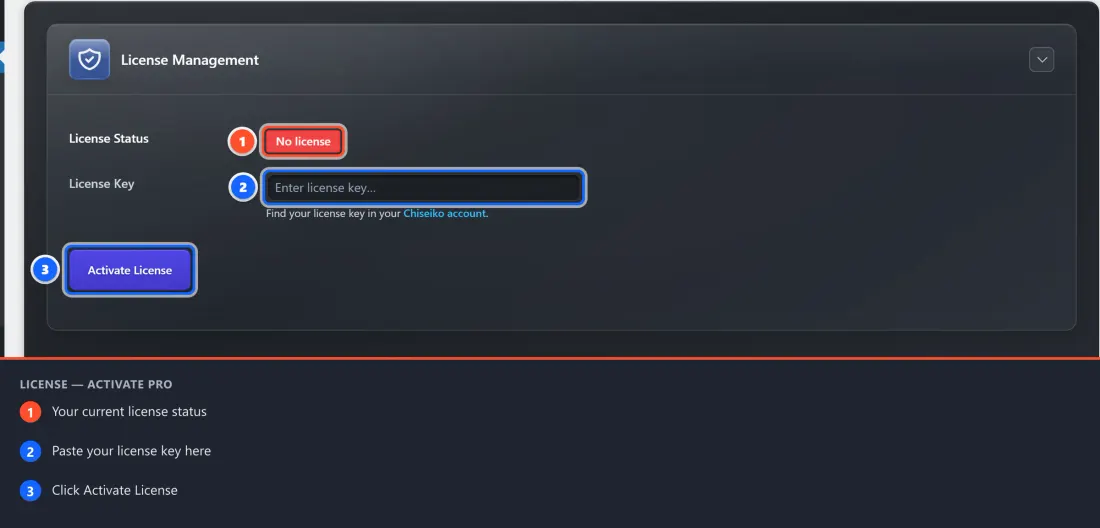
Double-check the key. Copy the key directly from your Chiseiko account — do not retype it manually. License keys are case-sensitive.
Check your server's outgoing connections. The plugin needs to make an outgoing HTTPS connection to
chiseikotech.com. Some hosting providers or server firewalls block outgoing connections. Contact your host and ask them to allow outgoing HTTPS requests to external URLs.Is the key already in use on another site? Each license key can be activated on a limited number of sites. If you have reached your limit, deactivate the key on an old site first. Log in to your account at chiseikotech.com to manage your activations.
Check that the Pro plugin is active. Go to Plugins and confirm Chiseiko Essential Swatches Pro is listed as Active (not just installed).
Is this a local/staging site? Licensing is tied to your domain. If you are working on a localhost environment or a staging subdomain, the key may not activate. Contact support — special localhost arrangements are often available.
Pro Module Checkboxes Are Greyed Out
You can see the modules list but all the checkboxes are disabled.
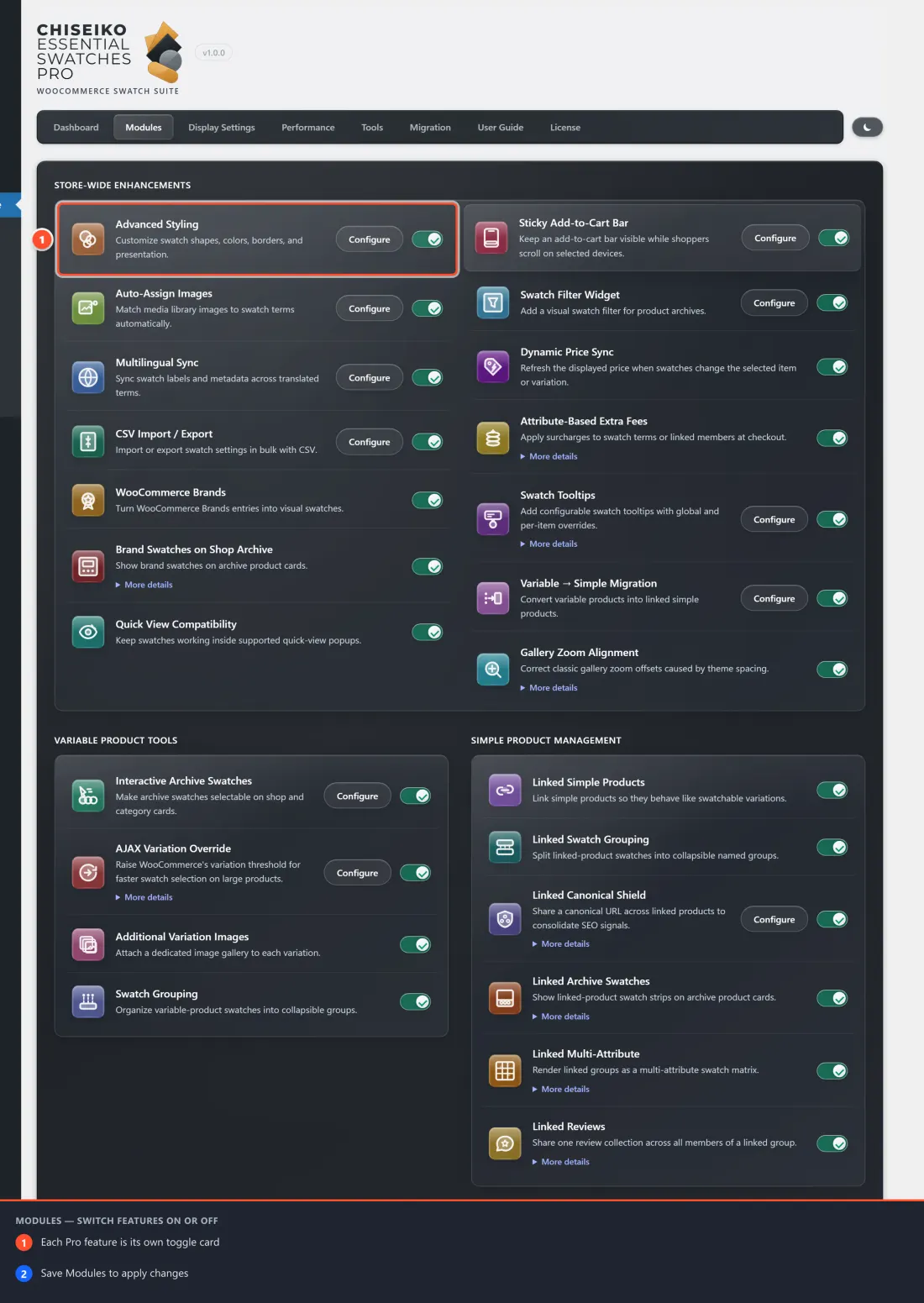
This always means your license is not active. Checkboxes are only enabled when a valid license is in place.
- Go to the License tab.
- Check your license status.
- If it says "No license", enter and activate your key (see instructions in Chapter 5).
- If it says "Expired", renew your license at chiseikotech.com and then click Re-check License.
Linked Products Swatch Settings Are Missing
You opened a product to set up a linked group but can't find the swatch / linked-group settings.
Is the module enabled? Go to WooCommerce → Chiseiko Essential Swatches Pro → Modules and confirm Linked Simple Products is checked and saved.
Is your license active? The module only runs with an active license.
Look in the right place — the Swatches tab. These settings live in the Product data box, on the Swatches tab (in the left-hand list of tabs, below "Advanced") — not in a separate meta box, so they are not listed under Screen Options.
Is the product type "Simple product" or "Variable product"? The Swatches tab appears on both Simple and Variable product edit screens.
Linked Product Swatches Don't Appear on the Product Page
You've set up the group on every product but no swatches appear.
Did you save every product in the group? Every member of the group must have the full list of group members entered and saved. Going halfway (saving only one product) won't work.
Do the products have attribute terms with swatches set up? The swatch appearance is derived from the product's attribute configuration. If no attributes with color/image swatches exist, the swatch will fall back to a text pill — which should still appear. If nothing appears at all, verify the products are published (not draft).
Are the products published? Draft or private products are excluded from the group display.
All Linked Group Members Show as Separate Cards on the Shop Page
Your linked group is set up correctly, but the Shop / category page lists every color as its own card instead of collapsing the group into a single card with a swatch strip.
Normally Chiseiko Essential Swatches Pro shows just one card per linked group (the canonical product) and lets the swatch strip switch between members. To keep this fast, the list of "members to hide" is stored in a cache that refreshes for 6 hours, and is rebuilt automatically whenever you save a product or its stock status changes.
Re-save any product in the group. Open any member, click Update, and reload the Shop page. Saving rebuilds the cache, and the group should immediately collapse to one card. This is the one-click fix for the most common case.
Clear your caching plugin / CDN. If you use WP Rocket, W3 Total Cache, LiteSpeed Cache, or a CDN, clear all caches — an old cached copy of the Shop page can keep showing the duplicates even after the group is fixed.
Did you create the products by import or a script? If the linked group was created by a bulk import, WP-CLI seeder, or other automation (anything that does not go through the normal product editor), that cache is not refreshed automatically. Re-saving one member (step 1) fixes it. Developers running such tooling should call
CHISEIKOESSW_Pro_Linked_Products_Archive::invalidate_exclusion_cache()after writing the group, or wait out the 6-hour cache window. See the Developer Guide, "Linked-archive exclusion cache — invalidation contract," for details.Confirm the Linked Archive Swatches module is enabled. The single-card collapse is part of that module — WooCommerce → Chiseiko Essential Swatches Pro → Modules.
Archive Swatches Are Still Read-Only (Not Interactive)
You enabled the Interactive Archive Swatches module but swatches on the shop page still don't do anything.
Clear all caches. This is the most common cause after enabling the module. Clear your caching plugin and any CDN cache, then reload the shop page.
Confirm the module is enabled and saved. Go to WooCommerce → Chiseiko Essential Swatches Pro → Modules, check that the box is ticked, and that you clicked Save Modules.
Check for JavaScript errors. In your browser, right-click → Inspect → Console tab. Look for any red error messages. A JavaScript conflict with another plugin or your theme may be preventing the interactive code from loading.
Clicking an Archive Swatch Doesn't Change the Product Image
The swatches are interactive (clickable) but the product card image stays the same.
The most likely cause: your product variations do not have individual images assigned.
To fix this:
- Open the product.
- Go to Product data → Variations.
- Expand each variation.
- Click the small placeholder image icon on the left side of each variation and upload or select an image.
- Click Save changes and then Update.
After doing this for the relevant products, clear your caches and test again.
Swatch Shape Isn't Changing
You changed the default shape in the Advanced Styling settings but swatches still look the same.
- Clear your cache. Caching plugins can serve old CSS. Clear everything and reload.
- Is the Advanced Styling module enabled? Check at WooCommerce → Chiseiko Essential Swatches Pro → Modules.
- Per-term overrides take priority. If you configured a shape directly on a term (in the term edit screen), it will override the global default. Edit the term and set its shape back to "Use global default" if you want the global setting to apply.
Tooltips Are Not Showing
You enabled Advanced Styling and set a tooltip position but no tooltip appears on hover.
Are you on the single product page? Tooltips only appear on individual product pages — not on the shop grid, category archive, or any other page. This is by design. If you are testing tooltips, navigate to a specific product page (not the Shop page) and hover over the swatches there.
Clear your cache. If tooltips were recently enabled, a caching plugin may be serving an old version of the page. Clear all caches and reload.
Check that the Advanced Styling module is enabled. Go to WooCommerce → Chiseiko Essential Swatches Pro → Modules and confirm Advanced Styling is checked.
Are you on a touchscreen device? Tooltips are triggered on mouse hover. They do not appear on tap-based mobile interactions by design.
Is your browser blocking hover effects? Some browser extensions (particularly accessibility tools) may interfere. Test in a clean browser window with extensions disabled.
Gradient Builder Section Is Not Visible
You opened a term's edit screen but there is no Swatch Gradient section or gradient builder.
Is the Advanced Styling module enabled? Go to WooCommerce → Chiseiko Essential Swatches Pro → Modules and confirm Advanced Styling is checked and saved. If the module is off, the gradient builder fields will not appear anywhere.
Is the Swatch Type set to "Color"? The gradient builder only appears on terms with Swatch Type: Color. If the type is set to Image, Label/text, or "— Select type —", the gradient builder will not show. Update the type to Color first and click Update, then re-open the edit screen.
Is your Pro license active? All Pro module features — including Advanced Styling — require an active license. Go to the License tab and confirm the status shows as active.
Try a hard refresh of the term edit page. Hold Ctrl + Shift + R (Windows) or Cmd + Shift + R (Mac) to force a full page reload without cache. Sometimes browser caching can hide newly added admin fields.
Gradient Swatch Shows as a Flat Color
You set up a gradient using the builder, clicked Update, but the swatch on the product page still shows as a single flat color.
Clear your caches — this is the most common cause. Your site's caching plugin (WP Rocket, WP Super Cache, LiteSpeed Cache, W3 Total Cache, etc.) may be serving a cached version of the page or stylesheet. Clear all caches, then reload the product page. Also clear your browser cache: press Ctrl + Shift + Del (Windows) or Cmd + Shift + Del (Mac) and clear cached images and files.
Confirm you clicked Update on the term. Changes are not auto-saved. After finishing the gradient builder, scroll to the bottom of the term edit screen and click the Update button. If you closed the tab before clicking Update, your changes were not saved.
Does the term have Swatch Type: Color? Gradients are ignored unless the term's Swatch Type is set to Color. Check the type on the term edit screen.
Is there a per-term shape set to something that hides the gradient? This is very unlikely, but check that no custom CSS in your theme is overriding the swatch's
backgroundstyle with abackground-colorthat takes priority. In your browser, right-click the swatch → Inspect → look at the Computed styles forbackground. If a theme or plugin CSS rule is overriding it, a developer can add a more specific CSS rule to correct this.
WooCommerce Brands Swatches Not Showing
You set up a brand swatch but it doesn't appear on the product page or shop grid.
Is WooCommerce Brands installed and active? The Brands module only activates when the official WooCommerce Brands extension is installed. Go to Plugins and confirm WooCommerce Brands is listed as Active.
Is the WooCommerce Brands module enabled? Go to WooCommerce → Chiseiko Essential Swatches Pro → Modules and confirm WooCommerce Brands is checked and saved.
Is the brand assigned to the product? Open the product editor. In the right sidebar (or bottom area), look for a Brands panel. Make sure the correct brand is checked. Click Update on the product.
Is the brand swatch configured? Go to Products → Brands, find your brand, and click Edit. Make sure the Brand Swatch Type is set to Color or Image — if it's set to "None", no swatch will appear.
Did you upload the image correctly? If using an image swatch, click Select Image, choose the image in the media library, and then click Use Image to confirm. Simply selecting the image without confirming does not save it.
Clear your cache. As with all visual changes, clear your caching plugin and browser cache after setting up a brand swatch.
Swatches Are Slow to Respond on First Click (30+ Variations)
On a product with many variations, the first swatch click takes a second or two before anything happens.
This is the WooCommerce threshold issue. The fix is described in Chapter 8 — Variation Threshold.
In short:
- Enable the Variation Threshold Override module.
- Go to WooCommerce → Chiseiko Essential Swatches Pro → Performance.
- Raise the Global Variation Threshold number to be higher than the number of variations on your affected products.
- Click Save Threshold Settings.
The "Chiseiko Essential Swatches Pro" Menu Is Missing
There is no "Chiseiko Essential Swatches Pro" option under WooCommerce in the admin menu.
- Is the Pro plugin installed and active? Go to Plugins and look for Chiseiko Essential Swatches Pro.
- Is the Free plugin also installed and active? The Pro plugin requires the Free plugin to be active.
- Do you have the right permissions? The menu is only shown to users with the manage_woocommerce permission (usually Shop Managers and Administrators).
General: Things Broke After an Update
After updating either plugin, something that was working before has stopped working.
- Clear all caches (plugin cache, browser cache, CDN).
- Check for PHP errors by going to Tools → Site Health and looking at the Info tab for error log details.
- Check for plugin conflicts — temporarily disable all non-essential plugins and check if the issue resolves.
- Restore from backup if available and contact support with the version numbers of both plugins.
Frequently Asked Questions
Q: Do swatches work on mobile devices? A: Yes. All swatches are touch-friendly and work on phones and tablets. Tooltips do not appear on mobile (since there is no hover) but all other features work normally.
Q: Will swatches slow down my site? A: No more than the standard WooCommerce variation system. The plugin is designed to be efficient:
- CSS and JavaScript only load on the specific pages that need them. For example, swatch styles do not load on your cart, checkout, or account pages — only on product display pages (the product page and shop/category archives).
- The Interactive Archive Swatches script loads with a
deferattribute, meaning it doesn't hold up your page from displaying. - For products within the variation threshold, no extra network requests are made on page load. For products with many variations that do hit the threshold, a small AJAX request fires when a customer first interacts — this is expected WordPress/WooCommerce behavior and is not specific to this plugin.
Q: Can I style the swatches to match my theme?
A: Yes. The plugin adds descriptive CSS classes to every element (e.g., chiseikoessw-swatch, chiseikoessw-swatch--color, chiseikoessw-swatch--selected, chiseikoessw-swatch--disabled). Any developer can add custom CSS rules using these classes in your theme's customizer or a custom CSS plugin. You can also use the Custom CSS per swatch term feature in the Advanced Styling module to add CSS to individual swatches without any developer needed.
Q: Does this work with WooCommerce's new block-based product pages? A: Yes. The plugin is compatible with WooCommerce's High Performance Order Storage (HPOS) and is tested with WooCommerce Blocks.
Q: Can I use both the Free plugin AND Pro at the same time? A: Yes — they are designed to work together. The Pro plugin is an add-on that extends the Free plugin. You always need both active.
Q: I have more than one store. Can I use the same license? A: Your license key covers a specific number of site activations. Check your license details at chiseikotech.com/account. If you need more activations, contact support or upgrade your plan.
Q: What happens to my swatch data if I deactivate the plugin? A: Your swatch configurations (colors, images, shapes) are stored in your WordPress database as term meta data. They are not deleted when you deactivate or even delete the plugin. If you reinstall the plugin, all your settings will still be there.
Q: Can I export/import swatch configurations? A: The plugin itself does not include an export/import tool. However, since all swatch data is stored as standard WordPress term meta, tools like WP All Export/Import or a full database backup can be used to migrate settings between sites.
Still Need Help?
If you've tried everything above and the issue persists:
- For general questions: Visit chiseikotech.com
- For Pro support: Log in to your account and open a support ticket
- Include in your message:
- WordPress version
- WooCommerce version
- Chiseiko Essential Swatches version (Free)
- Chiseiko Essential Swatches Pro version (if applicable)
- A description of what you expected vs. what happened
- Any error messages you see