
Chiseiko Essential Swatches Pro
Interactive Archive Swatches
Pro module. Requires Chiseiko Essential Swatches Pro with an active license. Enable the "Interactive Archive Swatches" module at WooCommerce → Chiseiko Essential Swatches Pro → Modules.
What Does This Module Do?
The Free plugin shows a small strip of swatches below each product card on your Shop page and category pages. By default that strip is read-only, but the Free plugin already includes an optional Interactive Archive Swatches setting (under WooCommerce → Settings → Chiseiko Essential Swatches Settings) that makes the strip clickable — with image swap, AJAX add-to-cart, and out-of-stock state — for variable products.
The Pro Interactive Archive Swatches module is a superset of that Free feature. When Pro is active and you enable this module, it takes over the archive swatches automatically — you do not need to toggle the Free setting — and additionally brings the same clickable, image-swapping cards to the related / up-sell / cross-sell product strip on single product pages.
With either the Free setting or this Pro module enabled, customers can:
- Click a swatch on the shop page to instantly swap the product card's photo to show that color
- Add the product to their cart directly from the shop grid (without visiting the product page)
- See which variations are out of stock — crossed-out swatches appear right on the shop page
This significantly improves the shopping experience because customers can browse and buy in fewer steps.
Enabling the Module
- Go to WooCommerce → Chiseiko Essential Swatches Pro → Modules.
- Check the box next to Interactive Archive Swatches.
- Click Save Modules.
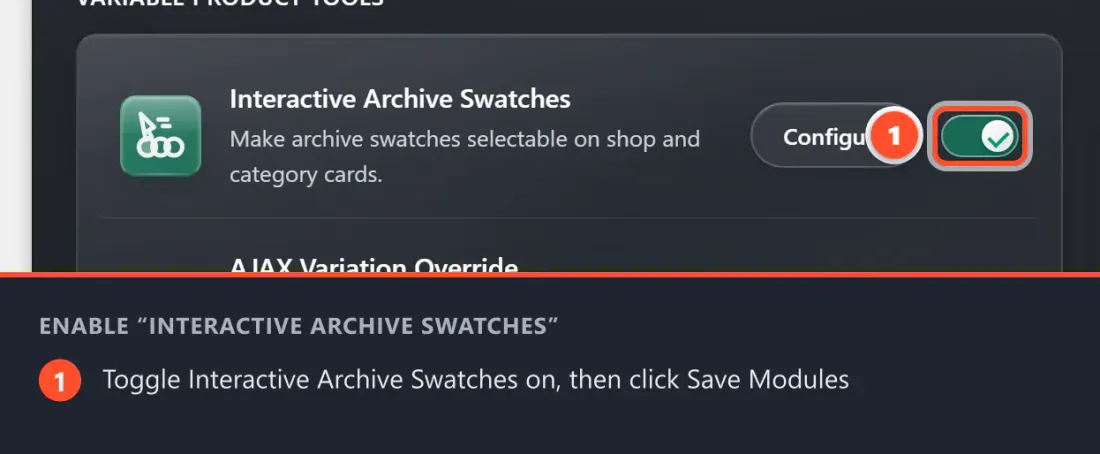
That is all that is required. Visit your Shop page to see the swatches in action.
Configuring Archive Swatch Settings
Go to WooCommerce → Chiseiko Essential Swatches Pro → Display Settings tab to access the settings. The Archive Swatches card holds the cache and add-to-cart options.
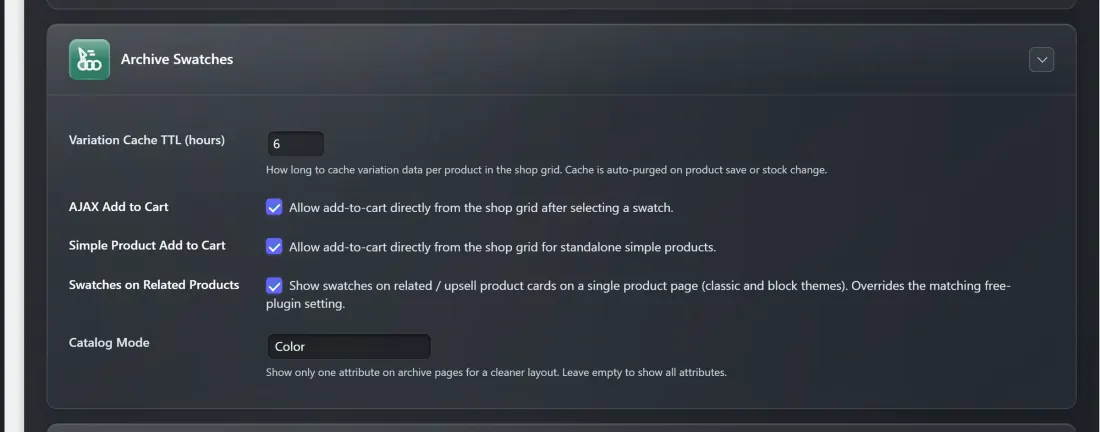
Setting: Variation Cache TTL (hours)
What it does: When a customer visits your shop page, the plugin prepares variation data (images, stock status) for each product in the background. This data is stored temporarily in a cache to keep the page fast. This setting controls how long that cache lasts.
Default value: 6 hours
How to adjust it:
- Enter any number between 1 and 72 (hours).
- A lower number means fresher data — useful if you frequently change stock or images.
- A higher number means fewer database lookups — useful for stores with large catalogs that change infrequently.
- Click Save Display Settings.
Good to know: The cache is automatically cleared whenever you save a product or change its stock level. So even with a high cache time, your data updates immediately after you make a change in the admin.
Setting: AJAX Add to Cart
What it does: When this option is checked, a small Add to Cart button appears on the product card after a customer selects a variation swatch. They can add the item to their cart without navigating to the product page.
Default: Enabled (checked)
When to disable it:
- If your theme already handles add-to-cart on archive pages in its own way and you are seeing duplicate buttons.
- If you want customers to always visit the full product page before purchasing (for example, if your products require customers to read important information).
To change this setting, check or uncheck the box and click Save Display Settings.
Performance note: When AJAX Add to Cart is disabled, the plugin also skips sending any extra data to the page that the AJAX feature would need. This means a slightly smaller page payload on your shop grid. There is no need to do anything special to get this benefit — it happens automatically when the setting is off.
Page Speed Notes
The Interactive Archive Swatches module is designed to be as lightweight as possible on your shop pages:
- Scripts are loaded with
defer— this means the archive swatch JavaScript does not slow down the initial display of your page. It loads in the background while the page content appears, and activates as soon as it is ready. - Only loads on archive/category pages — the interactive script is never loaded on product pages, cart, checkout, or your account area. It is strictly limited to the shop grid pages where it is needed.
You do not need to configure any of this — it works automatically. It is simply worth knowing that enabling this module has a minimal performance footprint.
What the Customer Experience Looks Like
Here is a walkthrough of what a customer sees:
- Customer visits your Shop page.
- Under each variable product card, they see the color swatch strip (same as the free version).
- Customer hovers over a swatch — it lights up interactively.
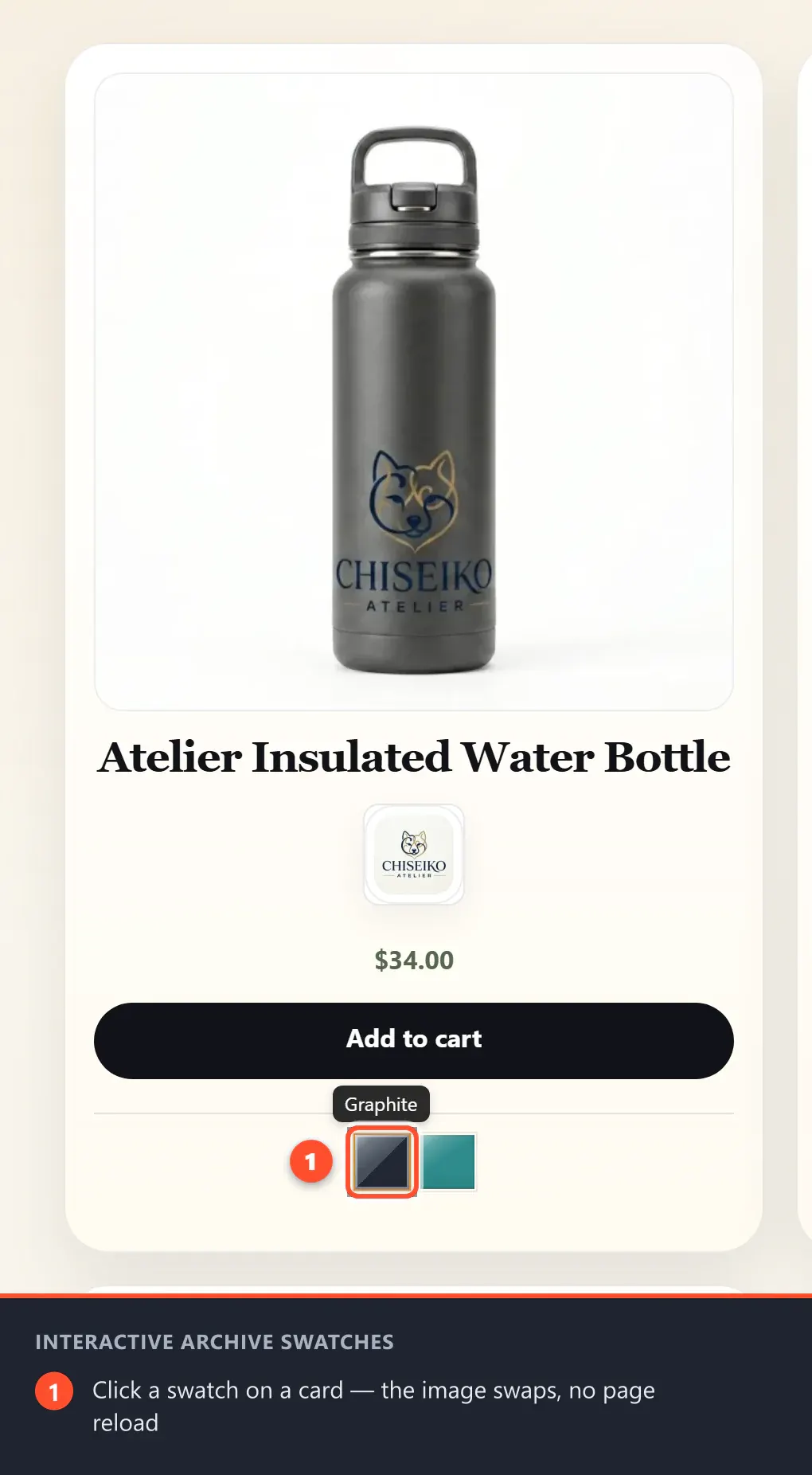
- Customer clicks a swatch — the product card image immediately swaps to show the selected color variant. No page reload.
- If "AJAX Add to Cart" is enabled, an "Add to cart" button appears below the swatches.
- Customer clicks Add to cart — the item is added to their cart with a confirmation. Still no page navigation.
- If a variation is out of stock, its swatch shows a visual strikethrough and cannot be selected.
Tips for Best Results
- Make sure your variations have images. The image-swap feature only works if each variation has its own image assigned. To assign variation images:
- Open a product.
- Go to Product data → Variations.
- Expand each variation and click the placeholder photo on the left to upload or select an image.
- Test on your live shop page after enabling the module to confirm the swatches look correct. Different themes may style the product cards differently.
- Cache TTL of 6 hours is the right starting point for most stores. Only adjust if you have a specific reason.
Frequently Asked Questions
Q: The swatches appear but clicking them doesn't swap the image. What's wrong? A: The most common cause is that the variations do not have individual images assigned. See the tip above. Also check that the module is enabled in the Modules tab.
Q: The "Add to Cart" button appears twice — once from my theme and once from the plugin. A: Uncheck AJAX Add to Cart in the Archive Swatches card on the Display Settings tab. This will remove the plugin's button and leave your theme's default button.
Q: Do these interactive swatches work on WooCommerce Block-based shop pages? A: Yes. The module is compatible with both the classic WooCommerce loop and the newer WooCommerce Blocks product grid.
Q: Does this module affect the product's single page? A: No. This module only affects the shop grid / archive pages. Single product page swatches are handled by the Free plugin.